Non-profit? Get up to 40% off HeyOrca
Make managing social easy with HeyOrca. Non-profits enjoy 25% off monthly plans and 40% off annual plans.
Non-profit organizations worldwide choose HeyOrca for built-in collaboration tools, unlimited users, and more. Curious about how it works? Let's take a look at how the team at Entrepreneurship for All (EforAll) uses HeyOrca to manage their 43 social media channels.

Plan posts in your content calendar
With HeyOrca, it's easy to visualize your upcoming content. Francia starts by identifying the topics she wants to post about. Then she maps out the posts in her calendar.
Her pro tip? Use draft posts as placeholders while you adjust your content schedule. (Psst! You can also use HeyOrca's Event Strips to mark important events and Social Media Holidays to auto-add regional holidays.)

Plan posts in your content calendar
With HeyOrca, it's easy to visualize your upcoming content. Francia starts by identifying the topics she wants to post about. Then she maps out the posts in her calendar.
Her pro tip? Use draft posts as placeholders while you adjust your content schedule. (Psst! You can also use HeyOrca's Event Strips to mark important events and Social Media Holidays to auto-add regional holidays.)
Add your copy, photos, videos, and GIFs
Francia gets to work on adding creative assets and writing captions. To help with this, she uses HeyOrca's Canva integration and AI caption generator.
Ready to bring your posts to life? HeyOrca makes it easy to experiment with different photos, videos, and GIFs – because every plan comes with unlimited media storage!

Add your copy, photos, videos, and GIFs
Francia gets to work on adding creative assets and writing captions. To help with this, she uses HeyOrca's Canva integration and AI caption generator.
Ready to bring your posts to life? HeyOrca makes it easy to experiment with different photos, videos, and GIFs – because every plan comes with unlimited media storage!
Approve posts before they're published
Wondering how Francia's team ensures their social content is always polished and on brand?
With her content set up in HeyOrca, Francia changes the status of each post to "Awaiting Approval." Then she sends a link to a colleague so they can review everything for clarity and correctness. Her colleague marks each post as "Approved" or "Needs Revision," and sometimes leaves internal comments to share feedback.

Approve posts before they're published
Wondering how Francia's team ensures their social content is always polished and on brand?
With her content set up in HeyOrca, Francia changes the status of each post to "Awaiting Approval." Then she sends a link to a colleague so they can review everything for clarity and correctness. Her colleague marks each post as "Approved" or "Needs Revision," and sometimes leaves internal comments to share feedback.
Copy posts to your other calendars
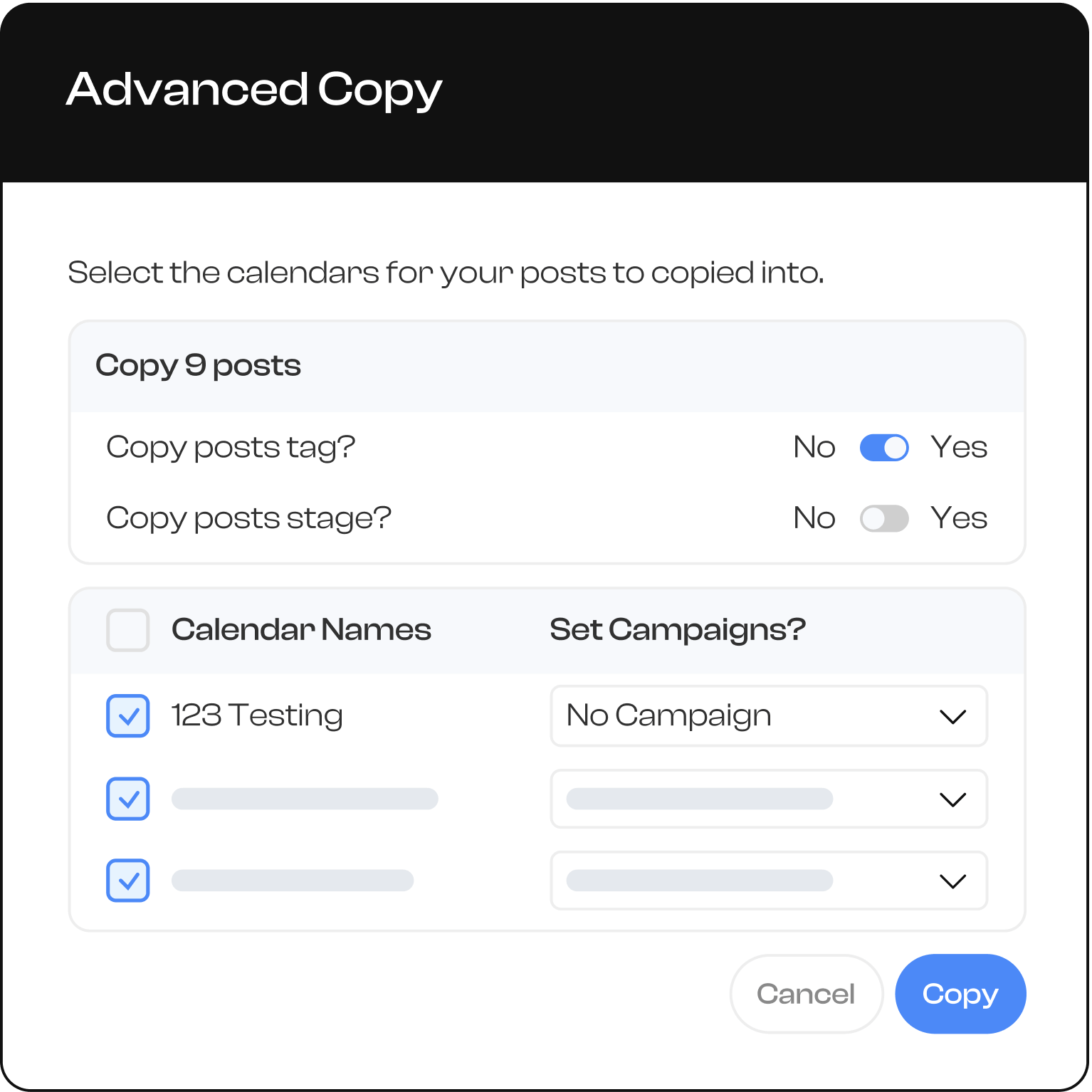
Non-profits often manage multiple social accounts, and EforAll is no exception. Instead of recreating each post for her organization's many channels, Francia simply uses HeyOrca's copy function to duplicate posts across her other content calendars.
Then she updates her wider team on the month's themes and important dates, and she notifies her organization's other social media managers that content is ready for them to work with in HeyOrca.
Copy posts to your other calendars
Non-profits often manage multiple social accounts, and EforAll is no exception. Instead of recreating each post for her organization's many channels, Francia simply uses HeyOrca's copy function to duplicate posts across her other content calendars.
Then she updates her wider team on the month's themes and important dates, and she notifies her organization's other social media managers that content is ready for them to work with in HeyOrca.
3 HeyOrca tools that non-profits love
Francia shared her most-used tools for collaborating with her team and building community.

Copy-to-calendar
“For people who have multiple accounts, this feature is great. It helps me copy everything in bulk. Without it, I’d have to go to each calendar one by one and do the same process 20 times."

Reports
“It’s so much easier than having to go to each app to check on performance. I’m a data-driven person, I like to study results to see what we’re going to do next and I find HeyOrca’s reports really helpful. They also look cute – very friendly to the eye."

AI writing tool
“I’m 100% on the AI train, it’s a great tool for social media marketers that here’s to stay. You just have to use it in a smart way and understand that it’s a tool to use to our benefit. It’s great to have it right in HeyOrca’s platform, so I don’t have to go to another app.”

Manage multiple social media clients all in one place
Frequently Asked Questions
How do I upload and schedule a YouTube video in HeyOrca?
To upload and schedule a YouTube video in HeyOrca, first connect your YouTube channel to HeyOrca. To upload your own thumbnail, you will also need to verify your YouTube channel via a phone number. To start your post, drag and drop your video file into your HeyOrca calendar, or press the “Create post” button. Input your post details, including video description, video title, audience settings, optional first comment, and optional thumbnail. Schedule your post or mark it as “Awaiting approval” by adjusting the “Post stage.”
Can I draft, review, and approve YouTube videos before publishing?
Yes, you can draft, review, and approve YouTube videos in HeyOrca before they’re published. In HeyOrca, there are 5 stages you can use to manage a post’s publishing status: Draft, Awaiting Approval, Approve, Revise, and Publish Now.
Can I see YouTube content alongside other social channels in my calendar?
Absolutely! When you manage social media in HeyOrca, you can see your posts across all your channels – including YouTube, Instagram, Facebook, LinkedIn, X (Twitter), Pinterest, Threads, TikTok, and Google Business Profile – on your calendar.
How do I connect my YouTube channel (Google account) to HeyOrca?
To connect your YouTube channel to HeyOrca, first verify that you are logged into the correct YouTube account. You will need to be the owner of the YouTube account you’re looking to connect. Then head to HeyOrca, navigate to your Settings, and click on “Add Account.” Then select YouTube. Follow the on-screen prompts to give HeyOrca permission to manage the account.
Does the Brand Monitoring Report show sentiment over time?
Yes, you can view the sentiment of mentions and comments over time using HeyOrca's “Sentiment Over Time” graph.
How much historical data does HeyOrca’s Sentiment Analysis include?
New HeyOrca users can access sentiment analysis data from the date of sign-up. Existing HeyOrca users can access Sentiment Analysis data from November 9, 2025, onward.