The best social media tool for YouTube and YouTube Shorts
Growing your YouTube community? Choose HeyOrca to schedule, approve, and publish your videos and shorts, all from one place.
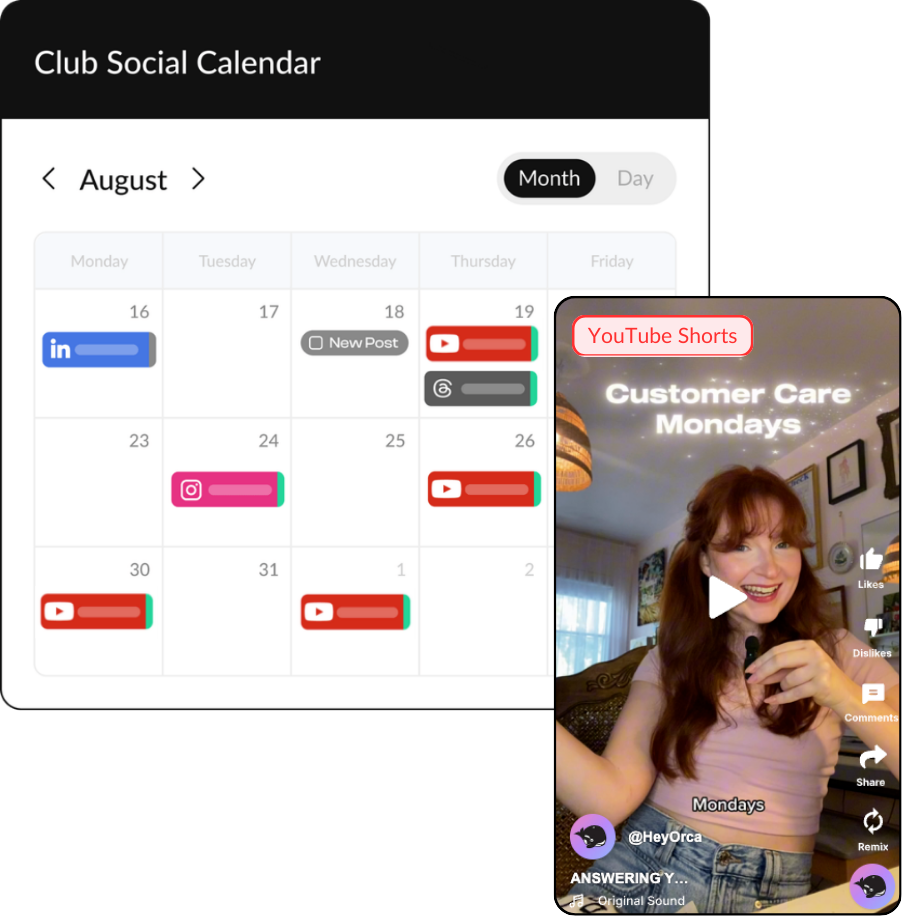
Collaborate with unlimited users
Get the tools you need to take your YouTube content from planned to approved to published. Plus, add your entire team (and all your clients!) to HeyOrca without extra fees.

Publish content directly to YouTube and YouTube Shorts
Get the tools you need to
build an engaged community on YouTube
Make it easy for clients to
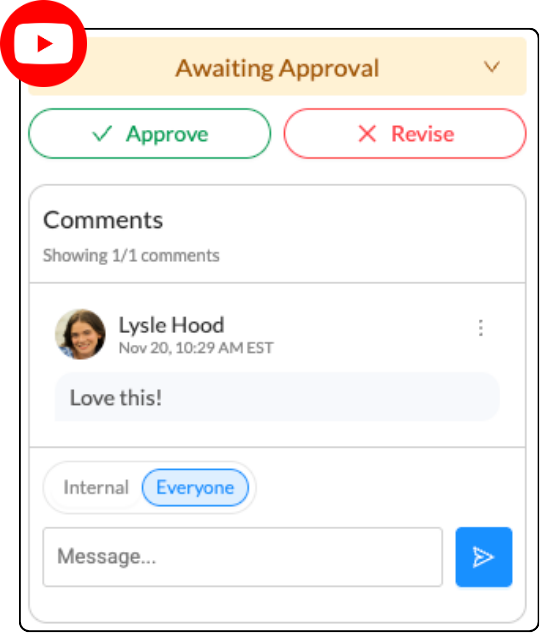
approve your YouTube content
Frequently asked questions
Does HeyOrca integrate with YouTube?
Yes, HeyOrca supports YouTube and YouTube Shorts in addition to Instagram, Facebook, LinkedIn, Pinterest, Threads, TikTok, and Google Business Profile.
Does HeyOrca’s YouTube scheduler have an approval process?
Yes, HeyOrca Basic and HeyOrca Pro include a content approval system so social media managers can have clients, team members, or stakeholders approve content before it's published.
Can I schedule YouTube videos with HeyOrca?
You sure can! HeyOrca allows you to schedule, approve, and publish YouTube videos and YouTube shorts. Your video can be a maximum of 10 minutes long, and your short can be up to 60 seconds long.
Does HeyOrca support scheduling YouTube Shorts?
Yes, social media marketers choose HeyOrca to publish their YouTube shorts. Your YouTube short should have a 9:16 aspect ratio, and it should be no longer than 60 seconds. You can upload your own custom thumbnail or choose a frame from your video.
Can I manage multiple YouTube channels in HeyOrca?
Yes, you can manage multiple YouTube channels in HeyOrca. Every HeyOrca calendar supports 10 social media profiles. That means you can connect 10 YouTube channels to a single calendar, or you can connect a combination of YouTube channels and other social media platforms.
How do I upload and schedule a YouTube video in HeyOrca?
To upload and schedule a YouTube video in HeyOrca, first connect your YouTube channel to HeyOrca. To upload your own thumbnail, you will also need to verify your YouTube channel via a phone number. To start your post, drag and drop your video file into your HeyOrca calendar, or press the “Create post” button. Input your post details, including video description, video title, audience settings, optional first comment, and optional thumbnail. Schedule your post or mark it as “Awaiting approval” by adjusting the “Post stage.”
Can I draft, review, and approve YouTube videos before publishing?
Yes, you can draft, review, and approve YouTube videos in HeyOrca before they’re published. In HeyOrca, there are 5 stages you can use to manage a post’s publishing status: Draft, Awaiting Approval, Approve, Revise, and Publish Now.
Can I see YouTube content alongside other social channels in my calendar?
Absolutely! When you manage social media in HeyOrca, you can see your posts across all your channels – including YouTube, Instagram, Facebook, LinkedIn, X (Twitter), Pinterest, Threads, TikTok, and Google Business Profile – on your calendar.
How do I connect my YouTube channel (Google account) to HeyOrca?
To connect your YouTube channel to HeyOrca, first verify that you are logged into the correct YouTube account. You will need to be the owner of the YouTube account you’re looking to connect. Then head to HeyOrca, navigate to your Calendar Settings, and click on “Add Account.” Then select YouTube. Follow the on-screen prompts to give HeyOrca permission to manage the account.