The top trending CapCut templates in 2026 (updated weekly): The latest video trends and how to use them
We know how long it can take to find popular CapCut templates and video trends for your social channels. We update this blog weekly to help you stay ahead of trends and take back your day.
%20(2).png)
Incorporating trends into your social media strategy is important for creating engagement, staying relevant, and gaining reach. Given the popularity of video content with social media users and algorithms, trending CapCut templates can really help you boost metrics.
To help you out, we do the hard work for you and summarize the top video trends each week. Keep scrolling to see what’s happening this week and learn from our CapCut trend tutorial. (And feel free to bookmark this page so you always know the latest trends!)
What is CapCut?
CapCut is a free all-in-one platform for editing videos and images. Available on desktop and mobile, CapCut has a ton of AI-powered features that help remove backgrounds, add video captions, convert text to speech, resize media, and much more.
CapCut makes it easy for social media managers to find and customize viral video templates for TikTok, Instagram, YouTube, and other platforms.
What are trending CapCut templates and why are they important?
After making videos on CapCut, creators can turn their content into templates others can use. Some CapCut templates become a viral trend by gaining a lot of traction on TikTok and Instagram. This makes it incredibly easy for companies and creators to hop on a trend and relate it to their brand.
Following social media trends helps brands improve performance by increasing reach and engagement. And using existing templates helps your team work quickly and efficiently.
How to find trending CapCut templates
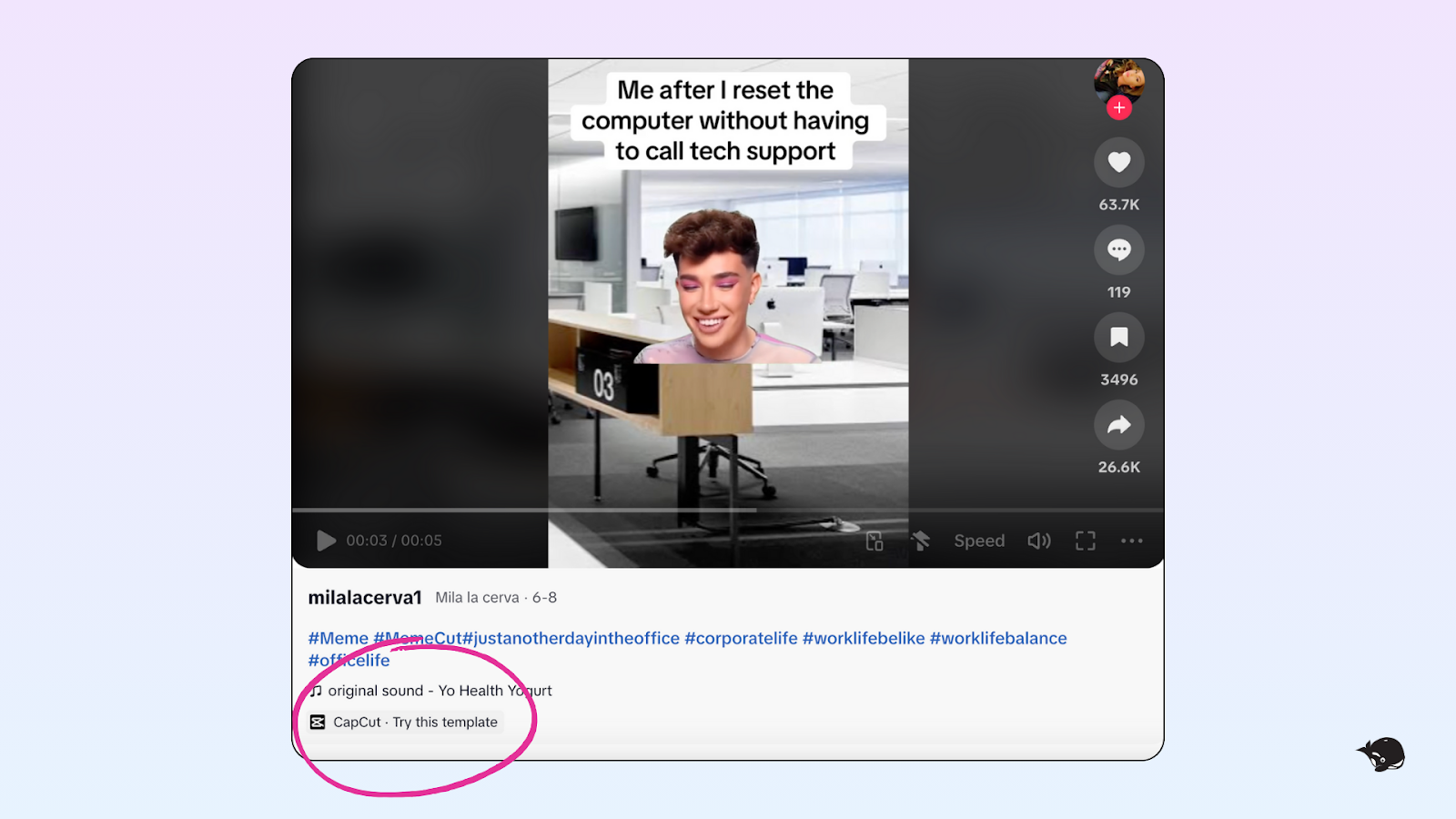
You can find trending CapCut templates on your TikTok For You page. Reels created using a CapCut template usually have a banner saying “CapCut — Try this template.” If you find any you like, save them to your feed so you can easily find them later. CapCut’s template page also has a trending section you can scroll through.
However, these methods can take a lot of time. Instead, we suggest saving this blog that’s always up-to-date with the top trending templates, so you can focus on creating great content!
This week's trending short-form videos and new CapCut templates
Each week, we browse TikTok and Reels to find the latest trending videos and CapCut templates and we update this blog with our findings. Here are the top video trends and CapCut templates for this week:
1. “What are you doing?” trend
With the Off Campus series having a moment right now, people are using this audio for those “caught doing something you absolutely shouldn’t be doing” situations. The joke is usually someone panicking and immediately lying about what they’re up to. Brands could easily adapt this to workplace moments, missed deadlines, sneaking in a coffee break, or checking analytics for the 50th time that day.
2. “How it feels when ____” trend
People are using this sound to dramatize painfully relatable moments. For social media managers, think: launching content with seconds to spare, getting approval on a meme post before it goes stale, or finally fixing a formatting issue after fighting Canva for an hour.
3. “Sorry I’m late it’s been such a crazy day” trend
This audio is mostly being used for before-and-after outfit transitions, but there’s a lot of room to make it your own. Brands could easily turn this into a “work from home to office” transition, a campaign glow-up, or the emotional journey of opening 47 Slack notifications at 9 a.m.
4. “That’s a lot of rules” CapCut template
This CapCut template is all about reacting to situations with way too many rules or expectations. Fair warning: there’s a lot of swearing in this one. But for the right brand voice, it’s perfect for poking fun at social media platform changes, impossible client requests, or workflows that somehow require 19 approvals.
5. “They could only have gotten that idea from someone else” trend
This audio is being used to joke about ideas so bad that they had to come from someone else. It’s ideal for workplace humour, chaotic brainstorming sessions, or those trends that make you stop and say, “There’s no way this got approved.”
6. “My brother!” trend
This sound is trending as people compare themselves to siblings or parents – usually with the joke that one clearly got better hair, genes, or luck. Brands could easily adapt this for department comparisons, old branding vs. new branding, or the difference between the social team and literally everyone else.
7. “Melissa” trend
This is one of those easy audios you can pair with team wins, wholesome office moments, or anything that just feels good. We’re happy for you, Melissa!
8. “Leaving” trend
This trend has been quietly gaining momentum over the past few weeks and feels pretty evergreen. Most people are dramatically showing themselves leaving somewhere with relatable text on screen, like “me leaving work after scheduling a month of content.”
9. “Just like I promised” trend
Realtors are loving this trend right now, but it can definitely work outside that niche, too. The format tells the story of how hard something was before revealing that you still got it done just like you promised.
10. “Generational age gap” trend
This trend is all about showing off friendships or work relationships between people with a big age gap. It’s wholesome, easy to film, and perfect for highlighting your work bestie or team dynamic.
10. “Word search” trend
This trend is so clever. The format uses a word search to reveal a hidden message, announcement, or phrase that your audience eventually spots. Brands could easily use this to tease launches, events, product drops, or campaign messaging in a way that feels interactive instead of overly promotional.
How to use CapCut templates
Once you find one you like, using trending CapCut templates is pretty simple. Steps vary slightly depending on whether you use CapCut on desktop or mobile. We’ve summarized how-to instructions from CapCut below.
Using CapCut templates on your computer
If you’re using CapCut on your desktop computer, follow these simple steps:
- Open CapCut on your computer.
- Upload your photo and video content by selecting “Import” or dragging and dropping into the platform. (CapCut also has a stock library you can use.)
- Select the best CapCut template for your brand. (The easiest way to access a template is to tap “CapCut · Try this template” at the bottom of the TikTok video.)
- Edit your video to customize the audio, text, transitions, video clips, etc.
- Preview your content and “Export” it to your phone or TikTok.
- Schedule your video for TikTok or Reels using HeyOrca.
Using CapCut templates on your phone
To use a new trending CapCut template on your phone, follow these steps:
- Tap “CapCut · Try this template” at the bottom of the TikTok video. This will open the CapCut app.
- Remove the template’s existing content and upload your own videos and photos.
- Click on the pencil icon to edit text, adjust audio, crop photos, etc.
- Watch your video from start to finish. When you’re happy with it, select “Export” and save it to your phone or TikTok.
- Schedule your video for TikTok or Reels using HeyOrca.
How to edit a CapCut template
When editing a new CapCut template, there are many ways to customize your content. You can replace existing photos or videos with your own, crop or trim content, hide elements, customize text and fonts, adjust audio settings, and more.
How to edit the text in a CapCut template
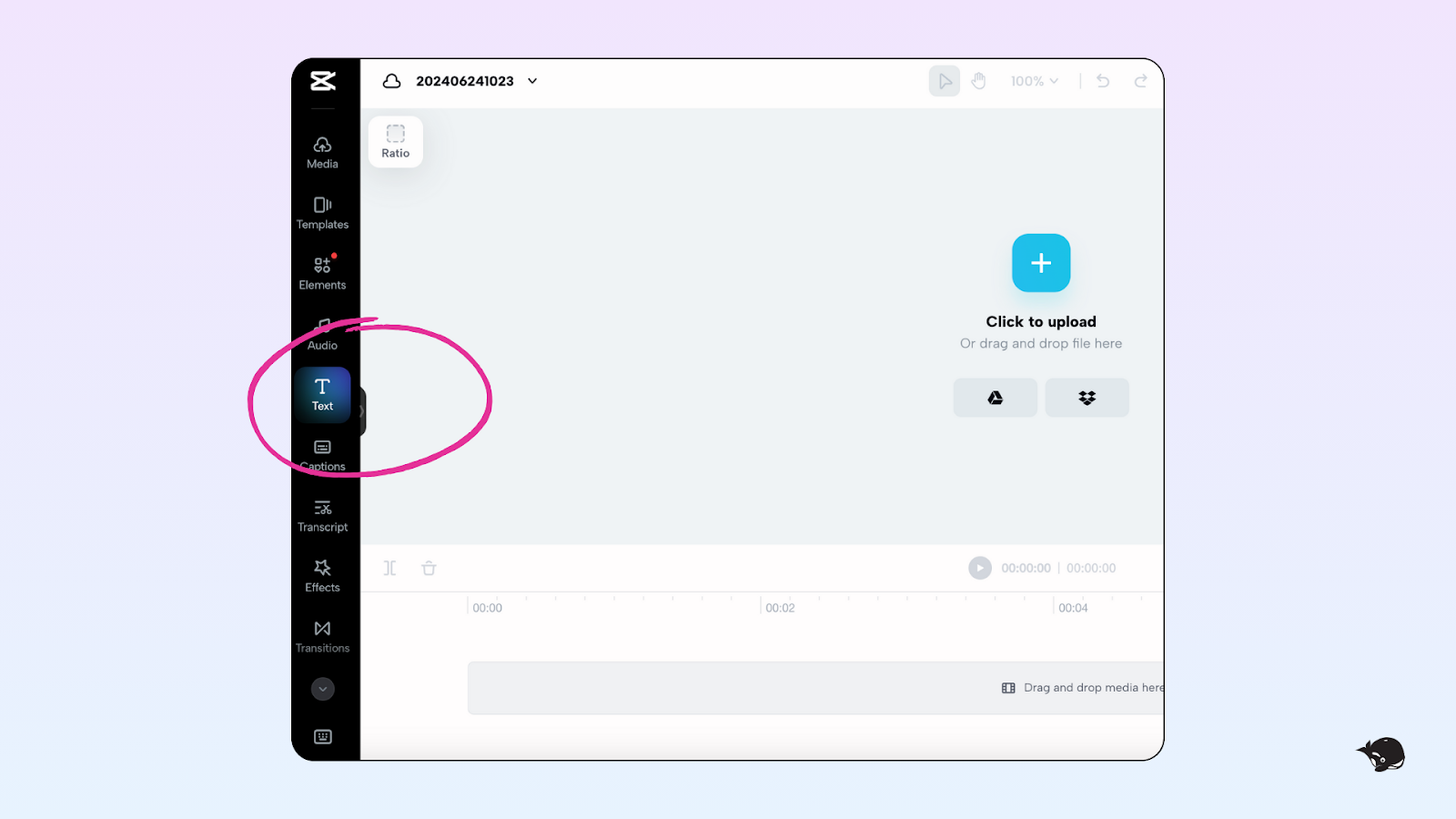
You can adjust the text on a video template in CapCut by selecting the “Text” tab and clicking on the text box you want to edit. From there you can write your own message, select a new font, change text size, move the text box, etc. Don’t be afraid to play with things to get them just right.
How to search fonts in CapCut
To change the font of a CapCut template, tap the “Text” tab, select “Font,” and browse the available options. To add a custom font, tap “Add font” and then the “+” button. This will allow you to access files and upload any font you choose. Once a custom font has been added to your CapCut account, it should always be available in the “Add font” tab.
How to add captions in CapCut
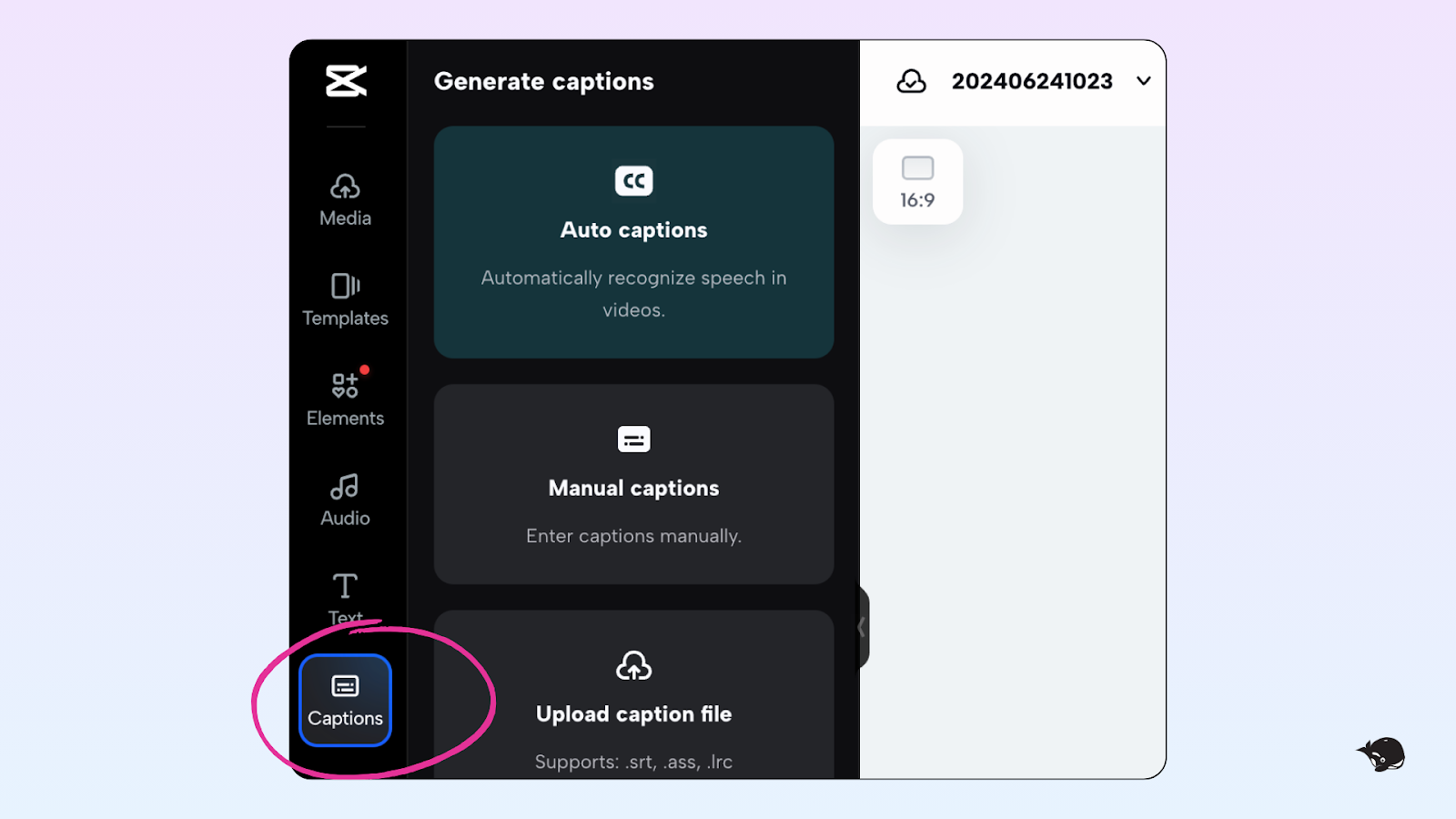
CapCut auto-captions help you easily add text to your video. In CapCut’s video editor, click on the “Captions” tab and select “Auto captions” and then “Start.” If there’s sound in your video, this should generate captions. These can be customized like other text elements in CapCut by changing the wording, size, position, font, colour, etc.
How to change audio in a CapCut Template
Follow these steps to change sounds in TikTok:
- After you’ve edited a template, “Export” the video and upload it to TikTok.
- In TikTok, tap “Add sound” and music choices will appear.
- Uncheck “Original sound” to mute the video’s current audio and select new music.
How to add music to a CapCut video
You can add music to any video in CapCut. When editing a new project, click “Audio” and “Sounds.” This will allow you to choose from a CapCut music library or your TikTok sounds (if you’re logged in). You can also click on the folder icon to upload a song from your phone’s library or choose from an audio file you’ve already uploaded.
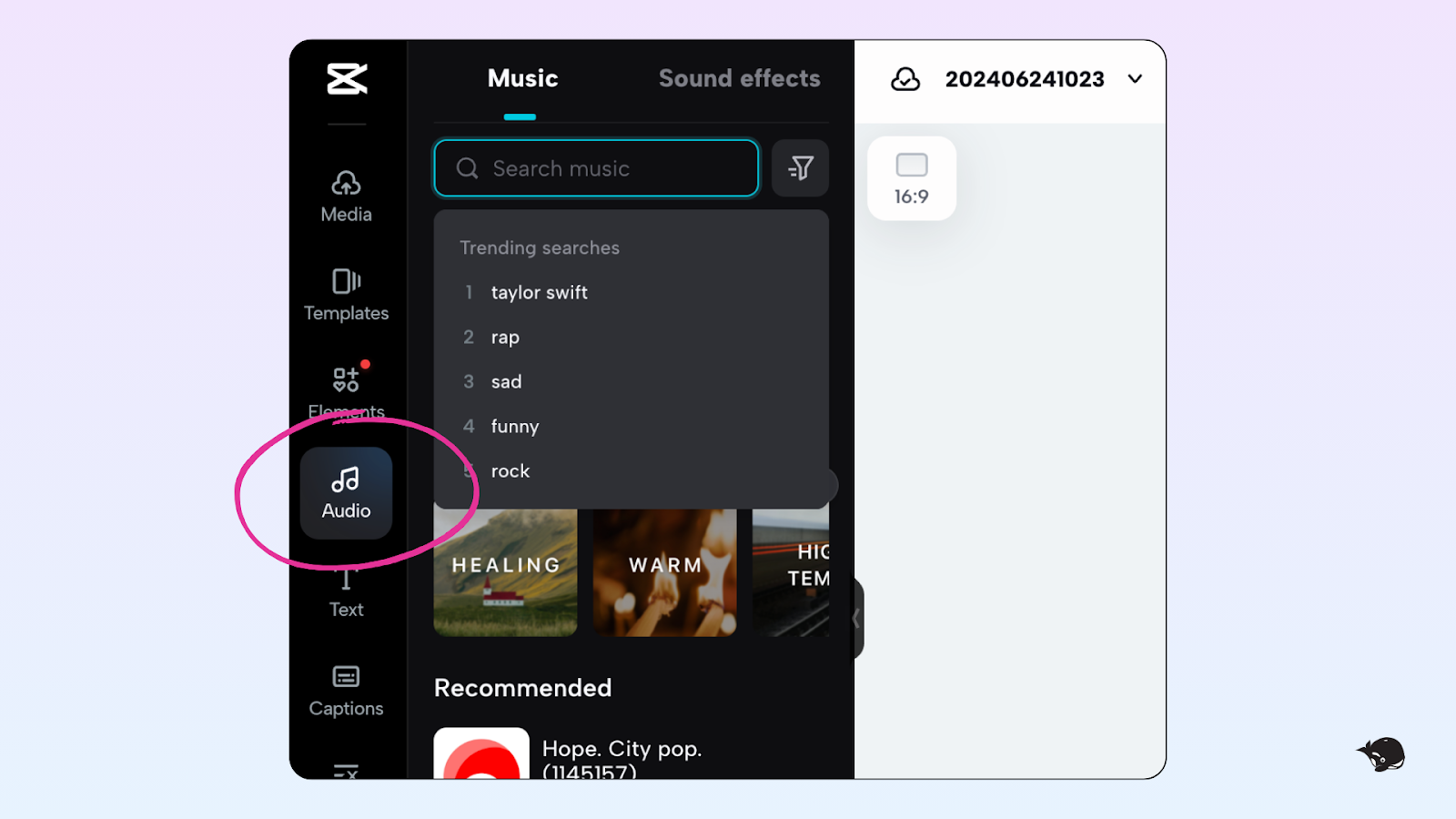
Keep in mind – any sound you use in social media content must be copyright-free. Once you have music added to your video, you can adjust its volume or clip and move the song to the part you want to play in your video.
If you’re looking for inspiration, check out our list of trending audio for reels and TikTok.
How to add a voiceover to CapCut videos
There are two ways to add voiceovers to CapCut videos: Record the audio yourself or use CapCut’s AI voiceover tool.
Adding a recorded voiceover to CapCut videos
This can be done in a few simple steps:
- In CapCut, launch a “New project” and upload the video you want to edit.
- In CapCut’s video editor, tap “Audio” and “Record” to record your own voiceover.
- Finalize the video by adjusting the sound, using audio effects, and adding captions. When you’re happy with it, tap “Export” to save it to your device or TikTok.
Using CapCut AI voiceover
If you’d rather use an AI voiceover, follow these steps:
- In Capcut, tap “New project” and upload a video you want to edit or record a video in the platform.
- Tap “Text” and “Add text.” CapCut’s text overlay feature will open where you can type everything you want to be said in your video.
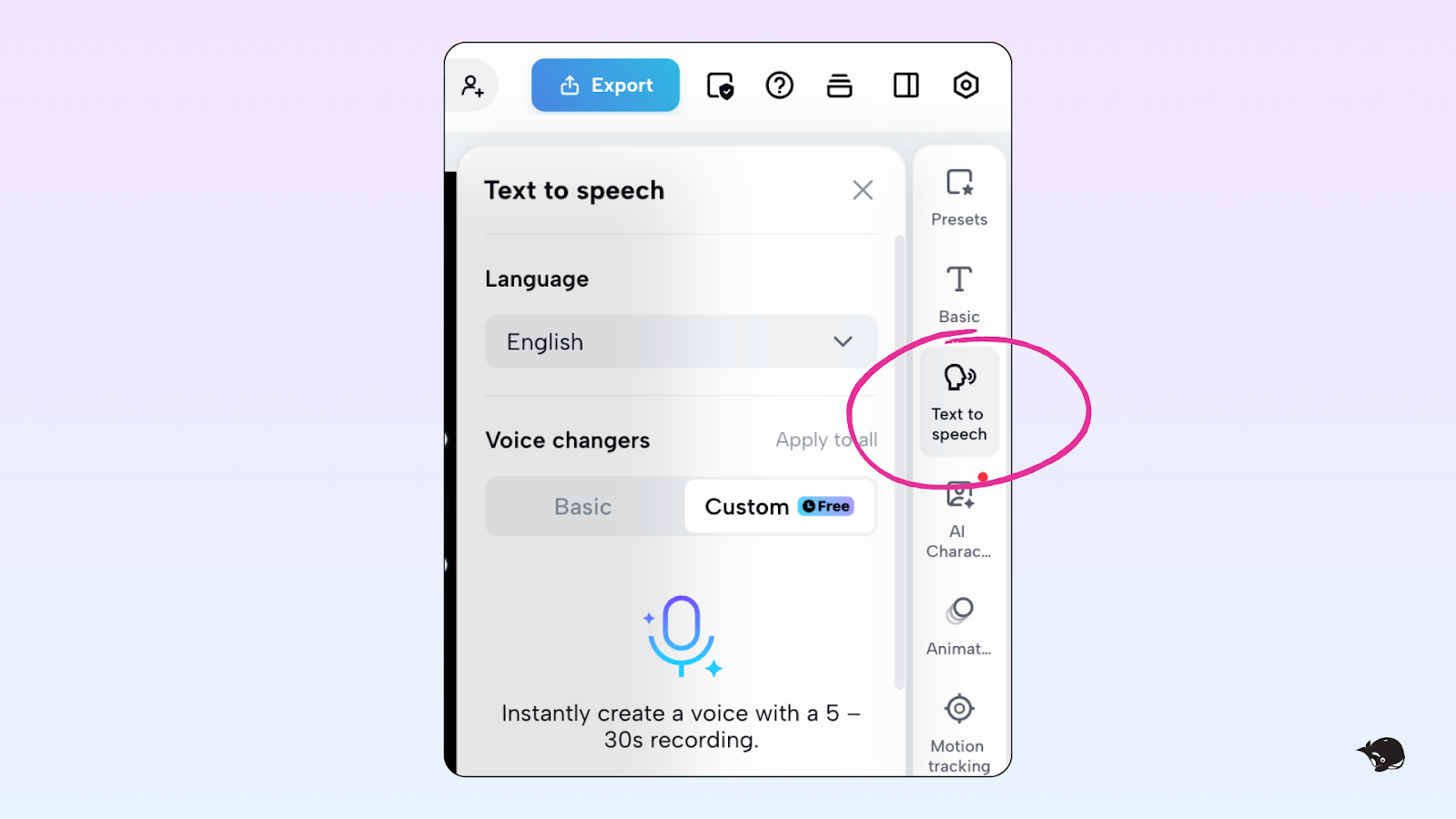
- In the CapCut editing menu, tap “Text to speech.” This will turn your written text into audio. You can choose from different voices, tones, etc. to customize the AI voiceover.
- Review your video and tap “Export” to save it to your phone or TikTok.
How to add sound effects to a CapCut video
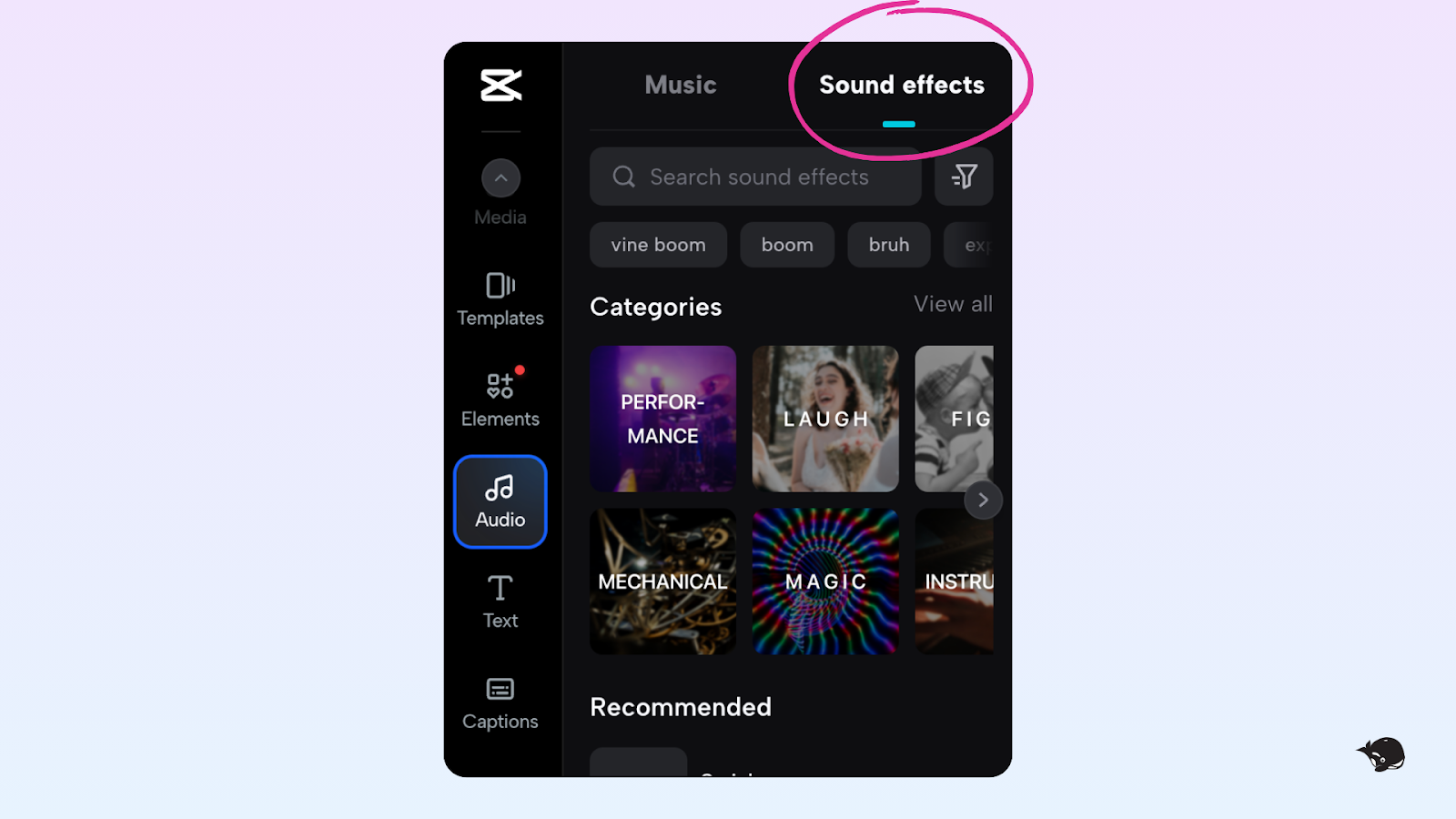
Adding video sound effects can help showcase transitions, enhance ASMR sounds, and make your content more engaging. You can do this easily in CapCut.
When editing a video project, click on a section where you’d like to add sound effects and tap “Audio” and “Sound FX”. A search tool will appear to help you find the sound you’re looking for. Test the sounds in search results and when you find one you like, click on the “+” sign. Then go back to your video to test the sound, adjust volume and placement, etc.
How to crop on CapCut or change a video’s aspect ratio
Whether working with a trending CapCut template or a new creation, cropping or resizing a video or photo in CapCut is easy. To crop, upload your video or photo and click on the cropping tool. Next, you can drag the corners of the image or video to crop it manually or select an aspect ratio and have CapCut do the work.
For videos, you can also play with its scale and adjust specific frames to create fun effects that zoom in or out as it plays.
If you want to resize instead, click on the photo or video in CapCut and open the resize tool. This will allow you to select from a list of common social media image sizes or customize the size of your content by specifying height and width. To finalize, tap “Resize” or “Resize on new page” and “Export” your content.
Do CapCut templates have a watermark?
Yes, CapCut templates have a watermark by default on the free and Pro version. However, if you have the Pro version, you can easily remove the watermark when you export your video.
How to remove a CapCut template watermark
In CapCut Pro, you can remove the watermark from a CapCut template after editing your video. When you click “Export,” you’ll have the option to “Save to device with CapCut watermark” or “Save and share to TikTok without CapCut watermark.”
Choose the second option. This will save the content to your phone without a watermark and bring you to TikTok where you can also store it in your drafts.
How to blur on CapCut
You can blur a photo or video in CapCut by tapping the “Effects” section and finding the blur option. After adding the blur effect for your desired timeline, export the blurred video and reload it onto the original video in CapCut’s editor. Click on the “Mask” tab to adjust the size and shape of the blur and use “Keyframes” to adjust the position of the blur through the video.
Other CapCut template FAQs
Here are some other FAQs related to trending CapCut templates:
How do I find TikTok trends on CapCut?
Many new TikTok trends start with the latest CapCut templates. You’ll find CapCut templates that are trending on your For You page or by scrolling through trending templates on CapCut.
How to post a template on CapCut
To post a template on CapCut that others can use, you have to become a CapCut Creator. This will give you the option to “Post as template” for all your CapCut creations when you “Export.”
How to remove templates on CapCut
If you want to remove a template on CapCut, go to your list of templates and scroll to the one you want to delete. Tap on the three dots next to the template and select “Delete.”
Have fun with trending CapCut video templates!
Trending CapCut templates are fun and easy to work with. Incorporating new trends into your social media strategy is a great way to stay relevant and boost metrics. Hopefully, you’ve found our mini CapCut tutorial helpful. Feel free to bookmark this page, so you’re always updated on the latest video trends and most popular CapCut templates!
Still paying per seat for your social media tool? With HeyOrca, you get unlimited users – so your whole team (and clients!!) can collaborate without the extra cost. Plan, approve, and schedule your next post now.
Every member of your team deserves a seat at the table. That's why every HeyOrca plan comes with unlimited users. Choose the social media scheduler that helps you create, collaborate, and build community – without worrying about extra fees. Start your free trial.
Build stronger social media communities. HeyOrca brings your whole team together – with unlimited users!! – to plan, approve, and schedule content in one place. See it come together in minutes.
Looking for a social media tool built for teams and agencies? Plan, approve, and schedule your next post in minutes with HeyOrca – no credit card required.
.png)


