Create Canva designs without leaving HeyOrca

Create new Canva designs, update existing ones, or pull in graphics you've already made right from HeyOrca.
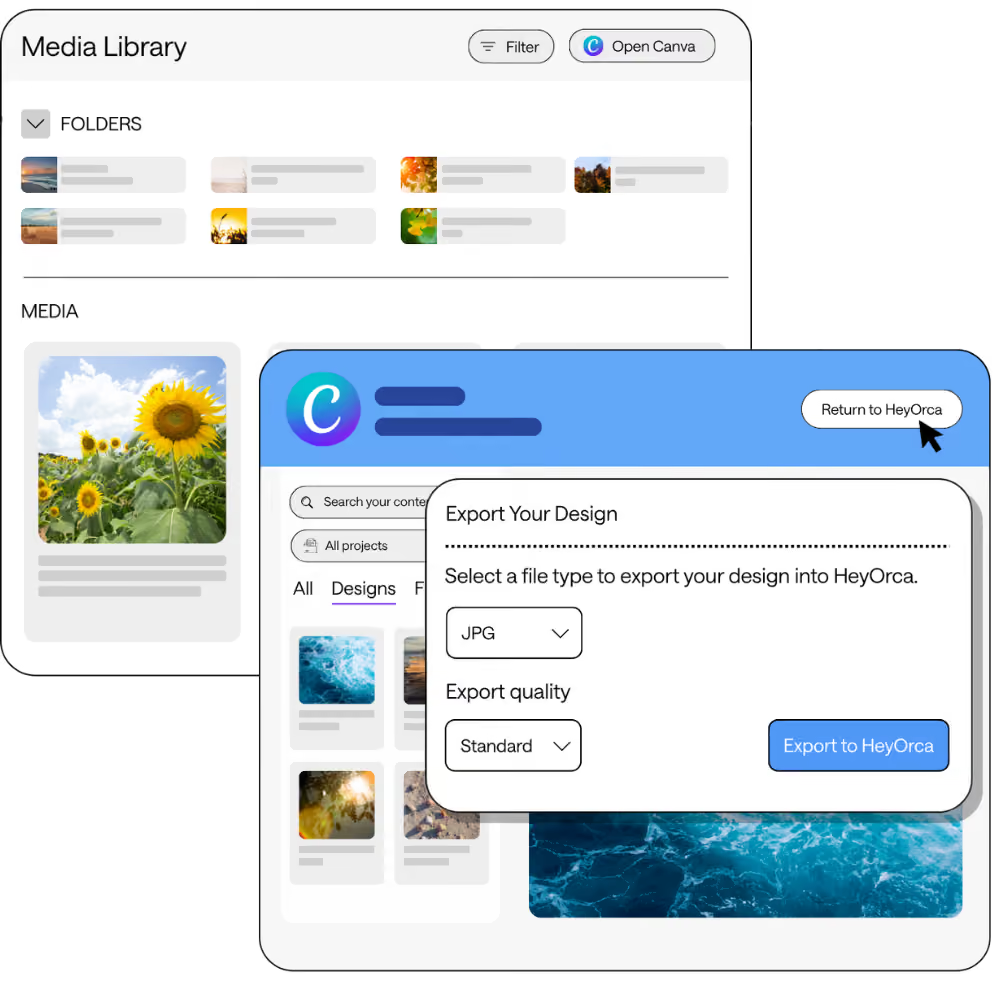
A user interface showing a media library with folders and media files, alongside an export design panel for selecting file type and quality.

Design, collaborate, and publish Canva designs from one place

Make social media design part of your workflow, not another opened tab.

Create

Design or reuse social media graphics in Canva right from your socal media content calendar.

Collaborate

Keep every design connected to your posts and Media Library, making it easy for your team to review and update content.

Publish

Export your finished design straight into your scheduled post and keep your publishing workflow moving.

Why social media teams love HeyOrca’s Canva integration

Design faster
Keep your content organized
Make edits without starting over
Collaborate with your team from one platform
Schedule content the moment your design is finished
A diverse group of women engaged in conversation at a professional networking event. One woman holds a schedule, and all appear engaged and smiling.
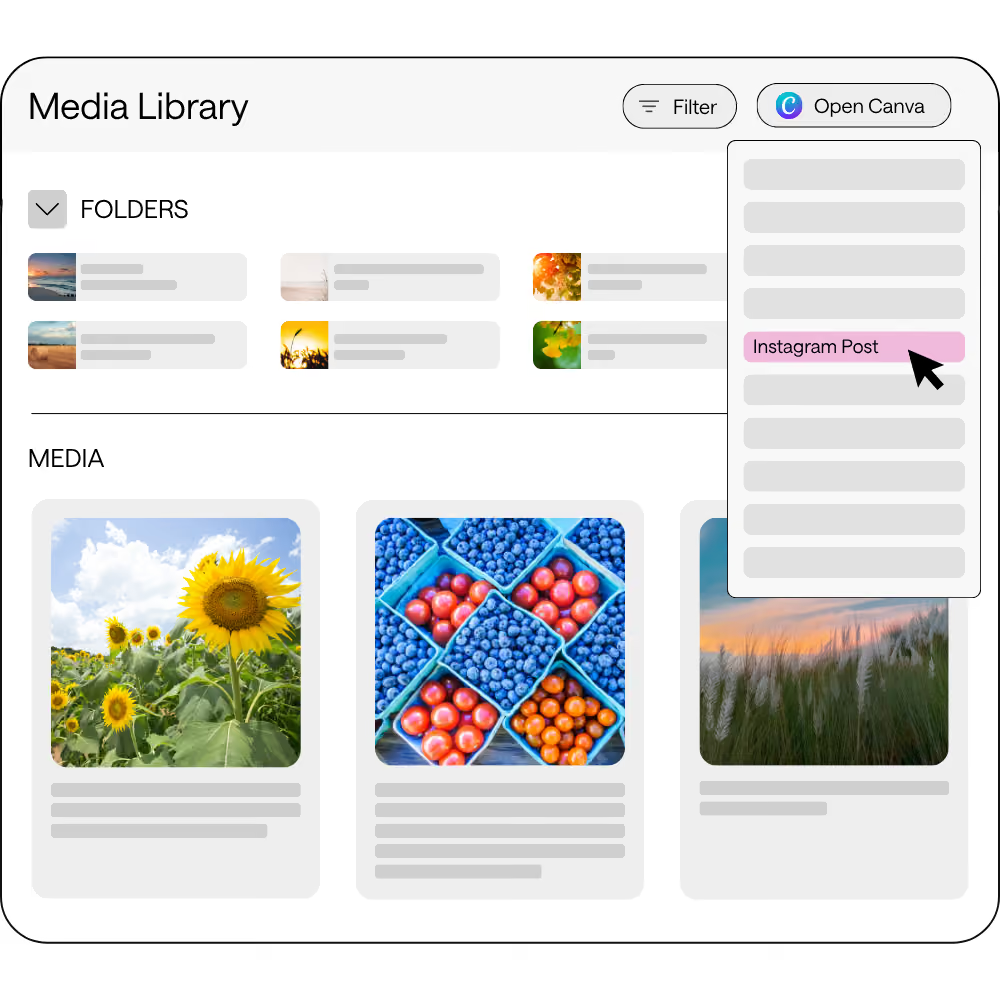
Digital media library interface displaying folders and images. The folders section shows multiple categories with one titled 'Instagram Post' highlighted. Below are image thumbnails of a sunflower field, assorted berries, and a misty landscape.

Create Canva designs inside HeyOrca

Start a brand-new Canva design directly from your post or Media Library. We'll automatically size your canvas for the social platform you're creating for.

Edit Canva graphics anytime

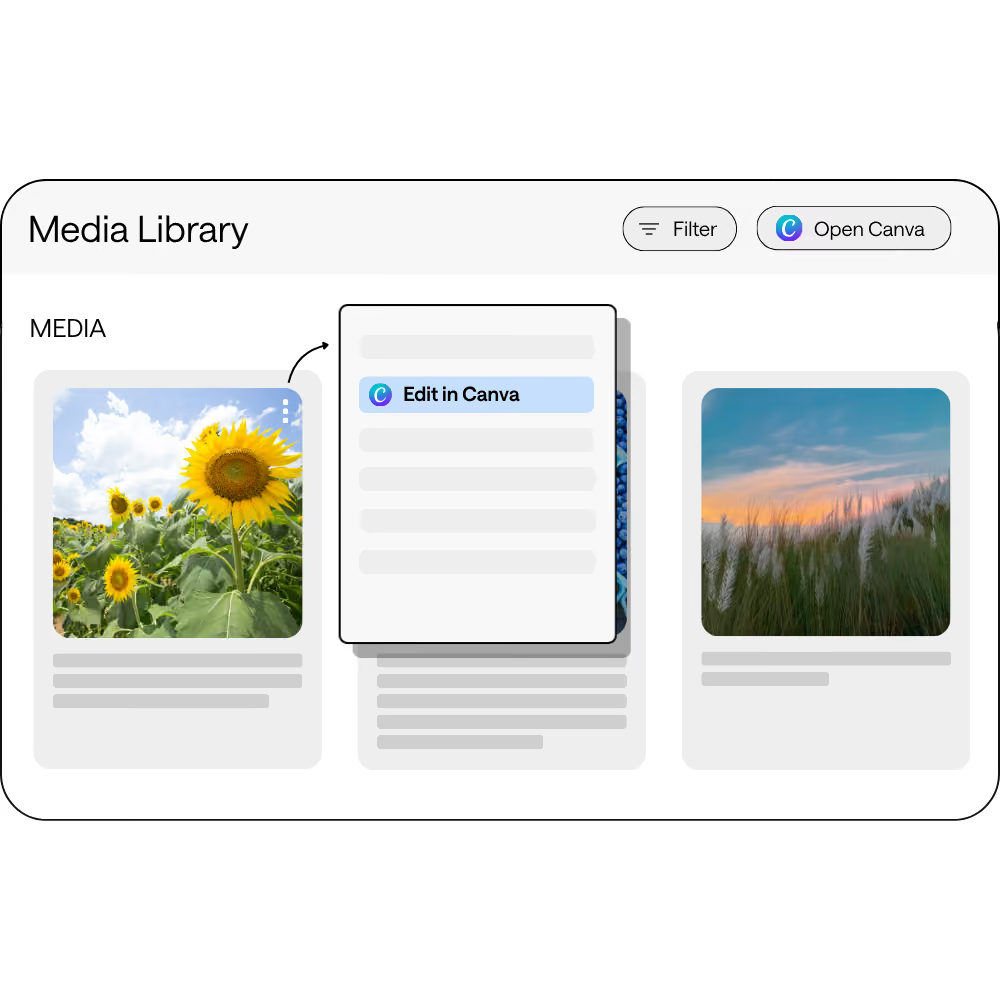
Need to update a design after you've exported it? No problem. Open it in Canva, make your changes, and send it right back to HeyOrca.
A computer interface shows a media library with thumbnail images arranged in a row. The highlighted one on the left displays a sunflower field, while the middle shows a list of editing options. The option 'Edit in Canva' is selected, indicating ongoing media editing.
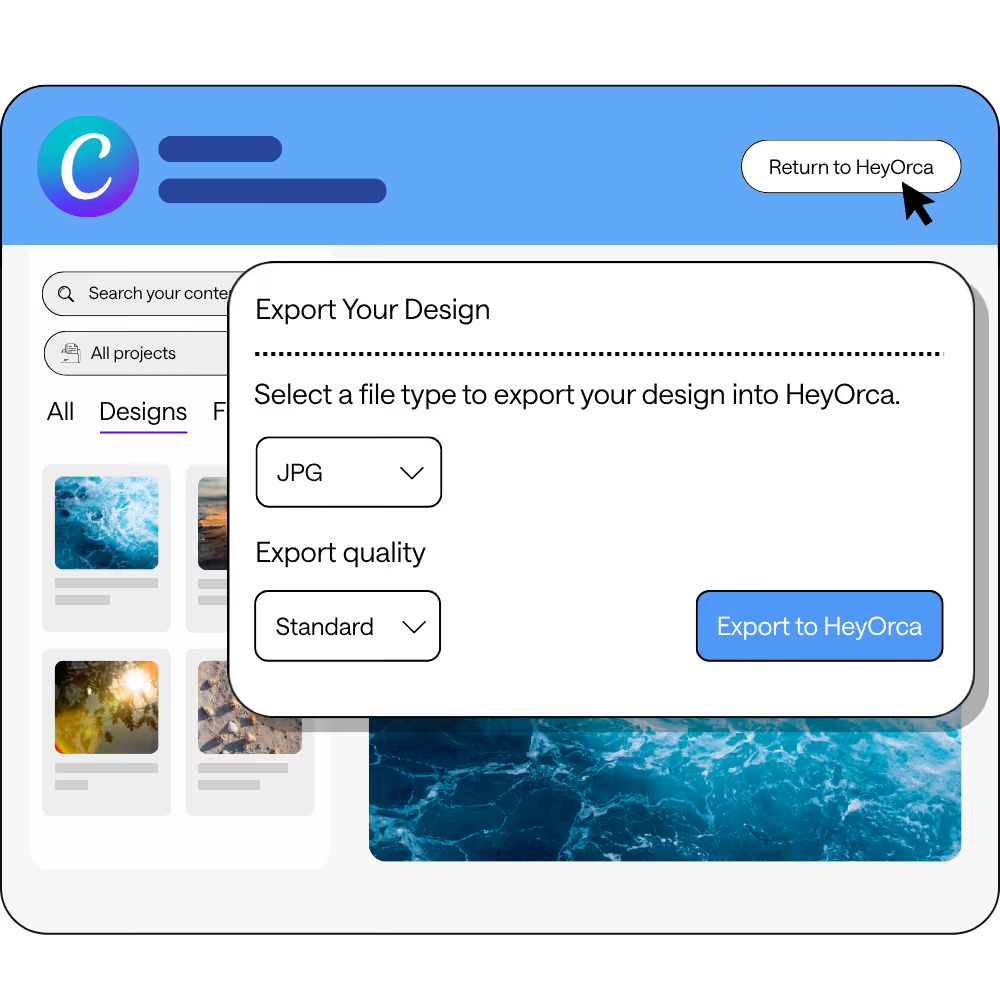
A digital interface showing an option to export a design to HeyOrca in JPG or PNG format with standard or high quality settings. The background displays a design gallery.

Access your existing Canva projects

Already designed something in Canva? Browse your Canva Projects, import an existing design, make edits if needed, and export it directly into your social media post in HeyOrca.

Build a reusable content library

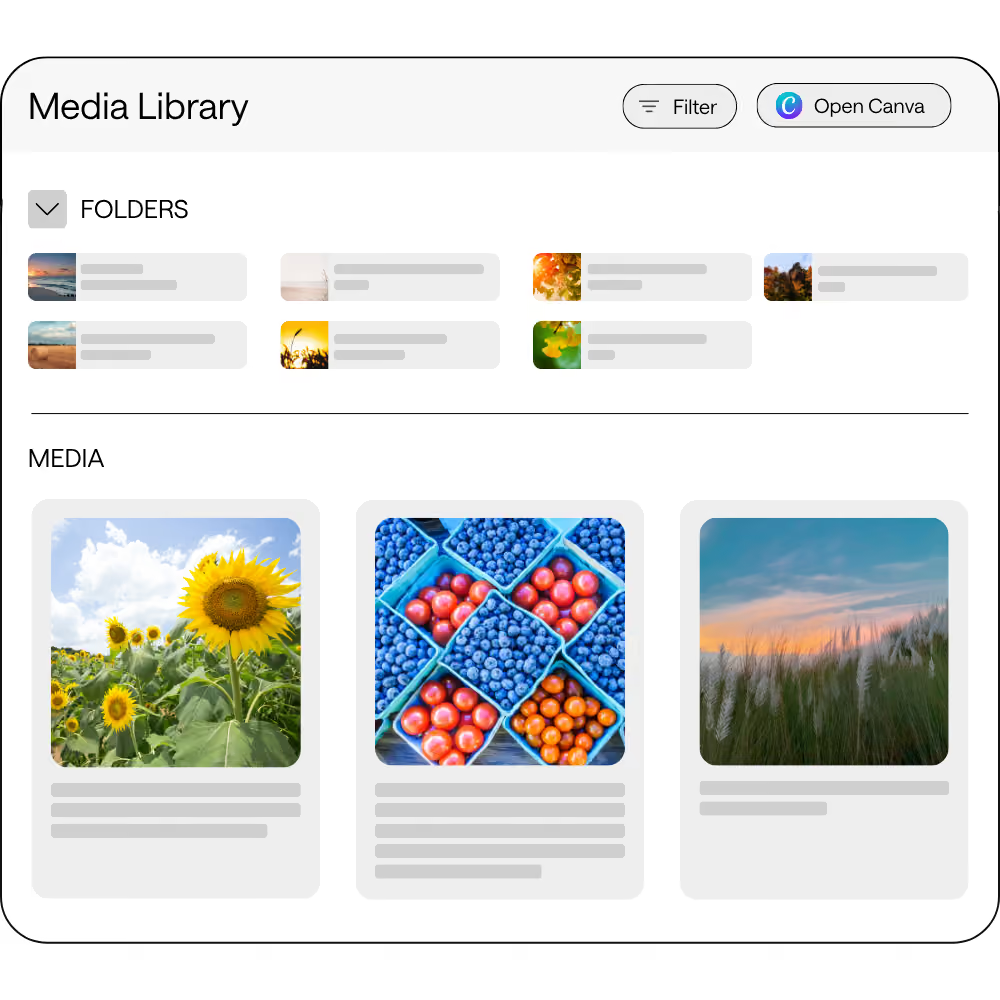
Not every design needs to be published today. Save Canva graphics to your HeyOrca Media Library so your team can reuse, organize, and schedule them later.
Start free trial
A digital media library interface displaying folders at the top and preview images below. The images include sunflowers, assorted berries in blue containers, and a scenic field with tall grass.

Frequently asked questions

Can I use my existing Canva designs?

Yes! Browse your Canva Projects directly from the integration, open any existing design, make changes if needed, and export it into  HeyOrca.

Can I edit designs after exporting them?

Absolutely. Any design you create through the Canva integration can be reopened, edited in Canva, and exported back into HeyOrca.

Where are my exported designs stored?

Designs created through the integration are stored in your HeyOrca Media Library, where you can organize them and edit them again later.

Can I use my Canva Brand Kit?

Yes, if you are paying for Canva Pro. When Canva opens, you'll have access to your Brand Kit, folders, templates, and other Canva design tools available to your account.

Can I export multiple pages?

Not yet. The Canva integration currently supports exporting single-image designs.

Are Canva premium elements supported?

Yes, but Canva may charge again for premium assets when an existing design is copied into HeyOrca. This is a limitation of Canva's API, not HeyOrca.

By clicking “Accept All Cookies”, you agree to the storing of cookies on your device to enhance site navigation, analyze site usage, and assist in our marketing efforts. View our Privacy Policy for more information.