How to repurpose content on TikTok & Instagram using CapCut

Learn how to repurpose TikTok videos for Instagram Reels using CapCut. Get watermark removal tips, editing best practices, and simple ways to reuse content.
If you’re creating brand-new videos for every single platform, you’re probably spending way more time than you need to.
Repurposing content is one of the easiest ways to stay consistent without burning out. But there’s one small problem: if you create your videos directly inside TikTok or Instagram, it becomes much harder to reuse them later.
That’s why many social media managers now create content outside the apps first. A simple workflow using your phone camera and a tool like CapCut gives you way more flexibility when it’s time to repurpose TikTok videos across platforms.
Because when you own the original version of your video, you can remix it, test new hooks, swap audio, and adapt it for different communities without starting from scratch every time.
Why your content needs to start outside social apps
Filming and editing directly inside TikTok or Instagram can feel convenient. But it also creates a few limitations:
- Your content gets locked into one platform
- Watermarks make reposting harder
- You lose flexibility when trends change
- You can’t easily test multiple versions later
Instead, try this workflow:
- Film your content on your phone
- Edit the video in CapCut
- Export a clean version
- Customize it for each platform
- Schedule and publish your posts
Simple? Yes. Way more reusable? Also yes.
What repurposing content actually means

Repurposing doesn’t mean reposting the exact same video everywhere with zero changes.
It means taking one strong content idea and adapting it for different platforms, formats, or communities.
That could look like:
- Testing a different hook on Instagram Reels
- Swapping audio for a platform-native sound
- Turning one long video into 3 shorter clips
- Updating captions depending on the platform
- Reposting a top-performing video months later
Think of repurposing like remixing – not copy-pasting.
How to prep your videos for repurposing in CapCut
The way you edit your video in CapCut matters. A few small choices early on can make your content much easier to reuse later.
Before exporting your video, try to:
- Create a clean “master” version without text or audio baked in
- Leave clips slightly longer so you can trim them later
- Keep important visuals away from screen edges
- Save multiple versions if needed (like one with captions and one without)
This gives you a flexible base you can adapt for TikTok, Instagram Reels, YouTube Shorts, and beyond.
How to repurpose TikTok videos (without hurting performance)
If TikTok is your starting point, a few small tweaks can make a big difference when it’s time to repost elsewhere.
Before posting on TikTok
- Turn on auto-save without watermark in your TikTok settings
- Avoid hardcoding text into the video itself
- Focus on creating a strong hook you can test elsewhere
- Add captions and platform-specific text inside TikTok instead
After posting
Once your video performs well, try creating alternate versions:
- Test a different opening hook
- Trim the pacing slightly faster
- Swap the on-screen text
- Change the caption angle
And if you already exported a version with a watermark? You’ll need to remove it before reposting elsewhere.
Instagram Reels tips that actually help reach
When it comes to Instagram Reels tips, one of the biggest things to remember is this: Instagram doesn’t just evaluate what you post. It also looks at how you use the platform.
Right now, Instagram tends to favour:
- Native audio
- In-app editing tools
- Content that feels made for Reels specifically
So instead of uploading a fully finished TikTok export, try this approach:
- Upload your clean CapCut edit
- Add trending or native Instagram audio
- Use Instagram text features when possible
- Slightly adjust your hook for Reels audiences
Those tiny platform-specific tweaks can help your content feel more natural to each community.
A repurposing workflow you can actually stick to
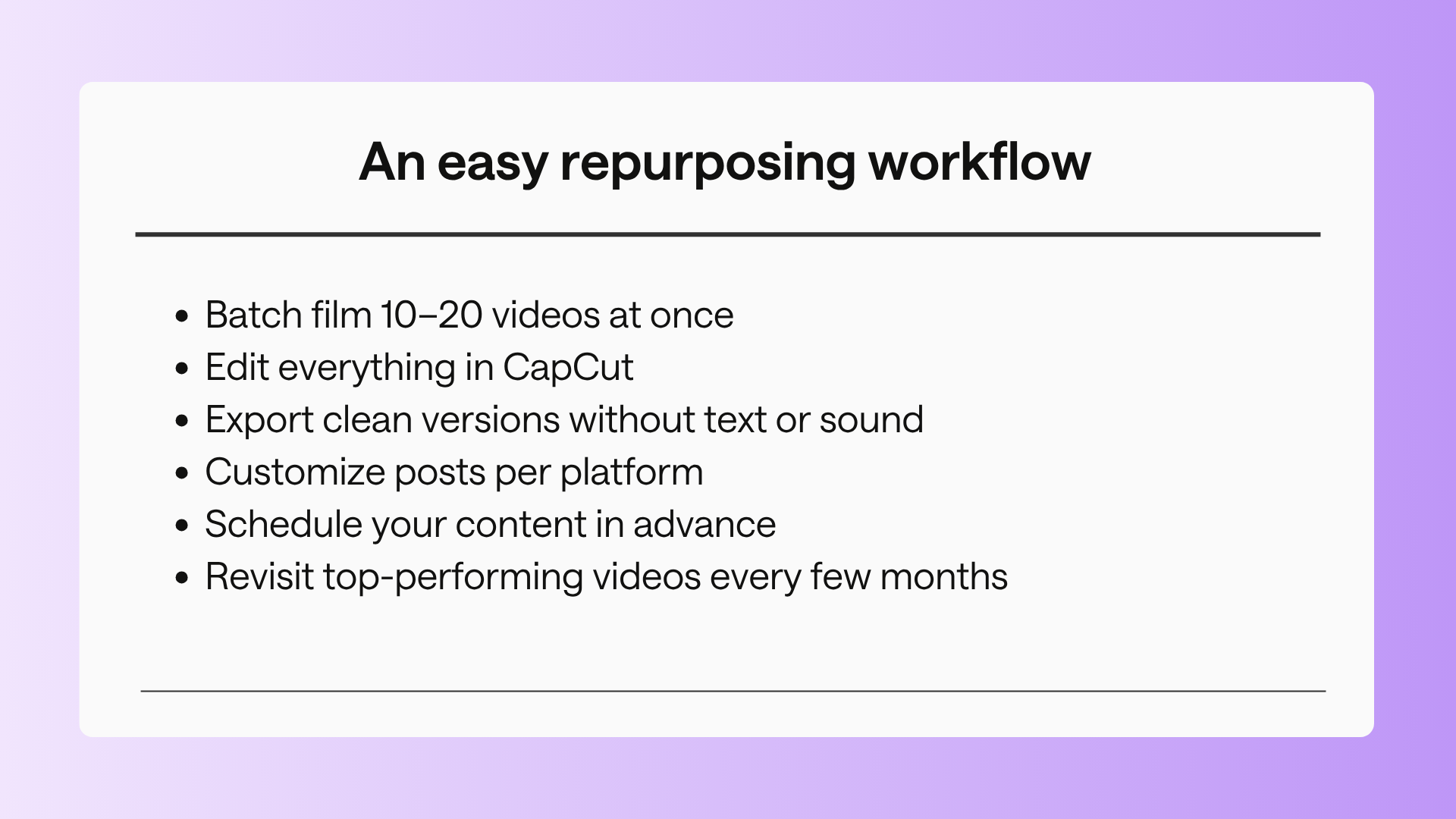
If your current workflow feels chaotic, here’s a way to simplify it:
- Batch film 10–20 videos at once
- Edit everything in CapCut
- Export clean versions without text or sound
- Customize posts per platform
- Schedule your content in advance
- Revisit top-performing videos every few months
Remember, the goal isn’t to create more content. It’s to get more mileage from the content you already made.
How to schedule and repurpose content with HeyOrca
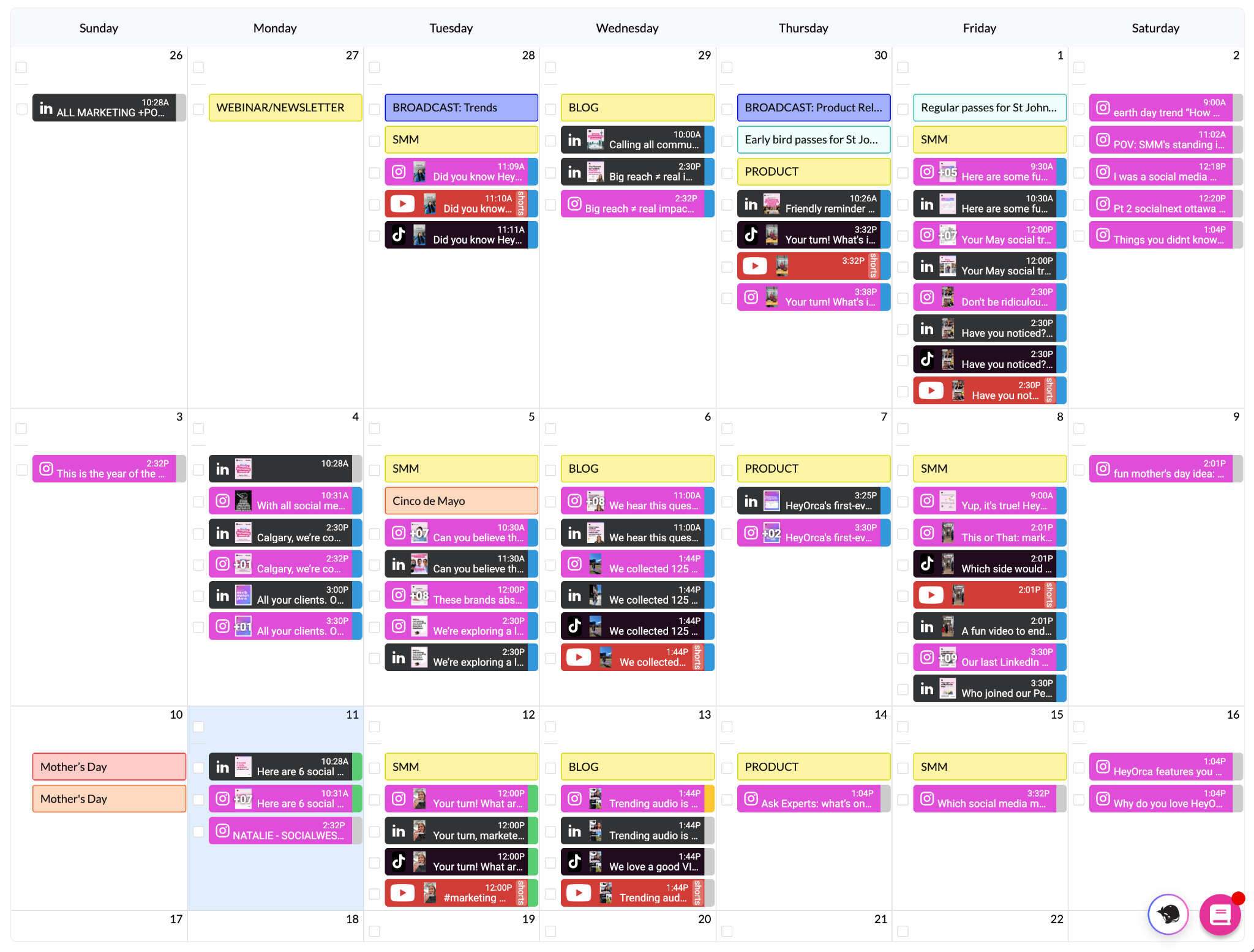
Once your videos are edited and ready to go, the next step is distribution.
This is where a social media management tool like HeyOrca can help you stay organized across platforms and campaigns.
Instead of manually uploading the same video over and over again, you can:
- Upload your CapCut video once
- Schedule it to TikTok with one caption
- Duplicate the post for Instagram Reels
- Adjust the hook or caption per platform
- Plan everything ahead of time with your team
And because collaboration happens in one place, it’s easier to keep your content calendar organized while still tailoring posts for each community.
4 common repurposing mistakes to avoid

TikTok, Instagram Reels, and Shorts all reward slightly different behaviours, pacing styles, and editing choices.
Here are a few common mistakes to watch for:
- Posting with watermarks
This can limit reach, especially on Instagram. - Using the exact same version everywhere
Small tweaks (hook, caption, audio) make a big difference. - Over-editing in one platform
If everything is baked in, you lose flexibility later. - Ignoring copyright
Not all audio is cleared for business use, especially across platforms. Try to stick with “original audio”.
Orca tip: Use the Inspo Library inside HeyOrca to keep up with weekly social media trends and trending audio ideas.
FAQs
How do you repurpose TikTok videos for Instagram?
Download your video without a watermark, then upload it to Instagram Reels. For best results, keep your master video clean and add platform-specific audio and text natively inside Instagram.
Can you repost TikTok videos on Instagram Reels?
Yes. But avoid reposting videos with TikTok watermarks. Clean exports usually perform better on Instagram Reels.
How do I remove the TikTok watermark?
You can enable watermark-free auto-save in TikTok settings or use third-party tools to remove the watermark from TikTok exports before reposting.
Should I use the same video on TikTok and Instagram?
Yes – but adapt it slightly for each platform. Keeping the same core content while changing the hook, caption, or audio can help the video feel more native to each community.
What’s the best app to repurpose TikTok videos?
CapCut is one of the most popular tools for editing and repurposing short-form video content across platforms.
Does repurposing content hurt engagement?
Not when done thoughtfully. Repurposing can actually improve consistency, help you test creative faster, and give strong content more opportunities to reach new communities.
Work smarter with your short-form content
Repurposing content helps you stay consistent without constantly creating from scratch.
When you build your workflow around flexible, reusable videos, it becomes easier to test ideas, adapt content for different platforms, and keep showing up for your community without burning out.
Start with one strong video. Then remix, repost, and refine from there.
Still paying per seat for your social media tool? With HeyOrca, you get unlimited users – so your whole team (and clients!!) can collaborate without the extra cost. Plan, approve, and schedule your next post now.
Every member of your team deserves a seat at the table. That's why every HeyOrca plan comes with unlimited users. Choose the social media scheduler that helps you create, collaborate, and build community – without worrying about extra fees. Start your free trial.
Build stronger social media communities. HeyOrca brings your whole team together – with unlimited users!! – to plan, approve, and schedule content in one place. See it come together in minutes.
Looking for a social media tool built for teams and agencies? Plan, approve, and schedule your next post in minutes with HeyOrca – no credit card required.
.png)


