How to organize Canva for your team (without losing your mind)

Learn how to organize Canva with practical tips for folders, uploads, naming conventions, and team workflows. Spend less time searching and more time creating.
If you've ever searched Canva for "Instagram post" . . . only to find 47 versions of the same graphic, this blog is for you.
Canva is one of the best design tools for marketers, but once your team starts creating content every day, things can get messy fast.
Between duplicate designs, random uploads, and folders that no one uses, finding the right asset can become harder than designing a new one from scratch.
Luckily, it doesn't have to stay that way.
In this guide, Canva Verified Expert Brenda Cadman shares how she organizes Canva for teams. Here are her best tips (plus a few workflow ideas of our own).
Why does Canva organization matter?
Think about how much time your team spends every week looking for designs.
Five minutes here. Ten minutes there. A teammate asking, "Where's the latest Instagram template?"
It doesn't sound like much until it happens dozens of times every week.
A well-organized Canva account helps your team:
- Find designs in seconds instead of digging through hundreds of files
- Reuse templates instead of recreating them
- Reduce duplicate assets
- Onboard new team members faster
- Spend more time creating content (and less time hunting for it)
1. Stop using your Canva homepage
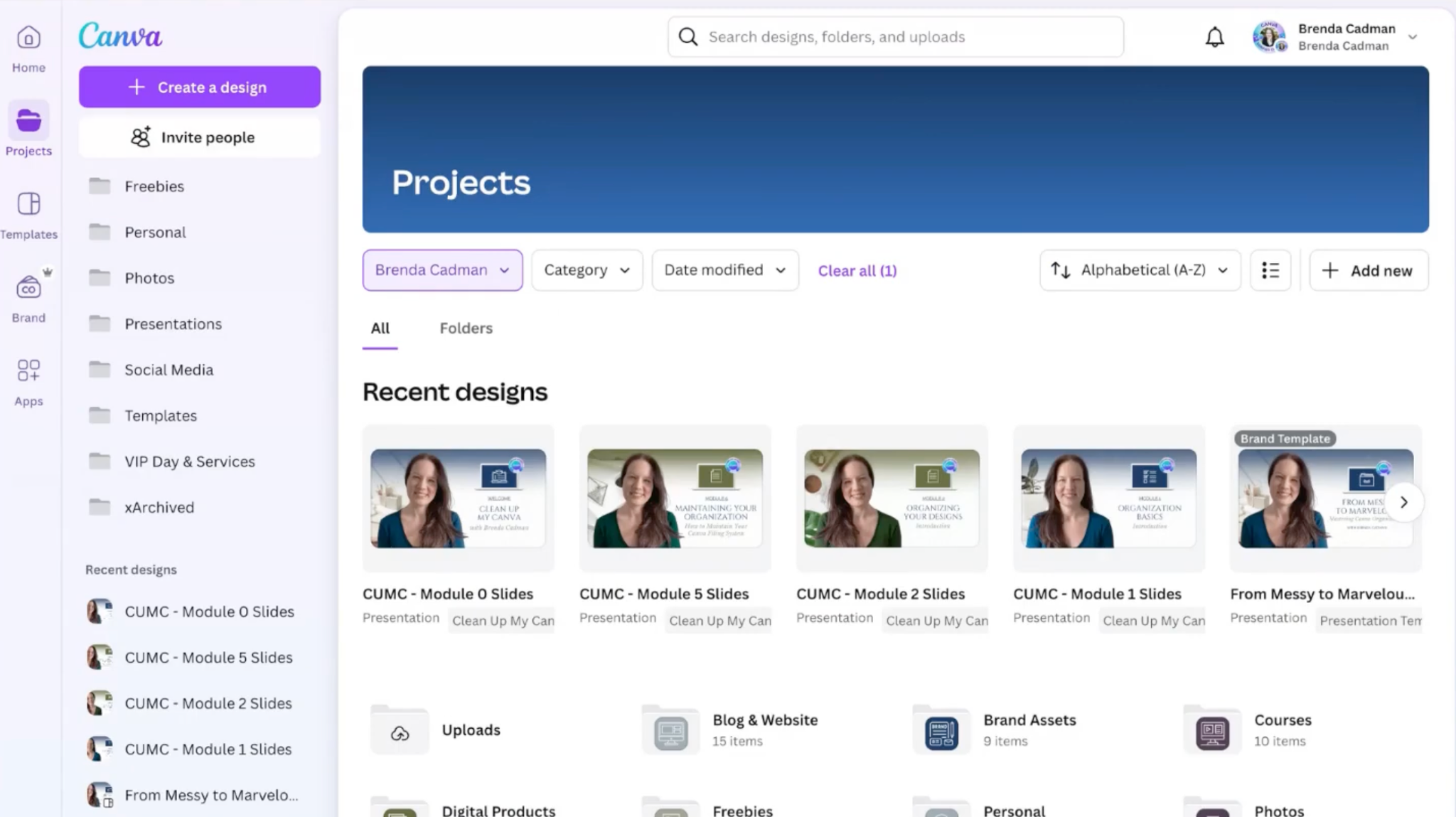
Most people open Canva and immediately start scrolling through their homepage, looking for a design.
The problem?
Canva's homepage isn't meant to be your filing system. It's simply a list of recently edited designs, and you can't customize how they're organized.
Instead, make Projects your starting point.
Inside Projects, you can:
- Create folders
- Add subfolders
- Move multiple designs at once
- Organize your content in a way that makes sense for your team
Think of it this way:
Your Canva homepage is like your computer desktop.
Your Projects page is your filing cabinet.
If you only remember one tip from this article, make it this one.
Orca tip: Bookmark your Canva Projects page instead of Canva's homepage. After a week or two, opening Projects will become second nature, and you'll spend far less time scrolling.
2. Build folders (and don't forget subfolders)
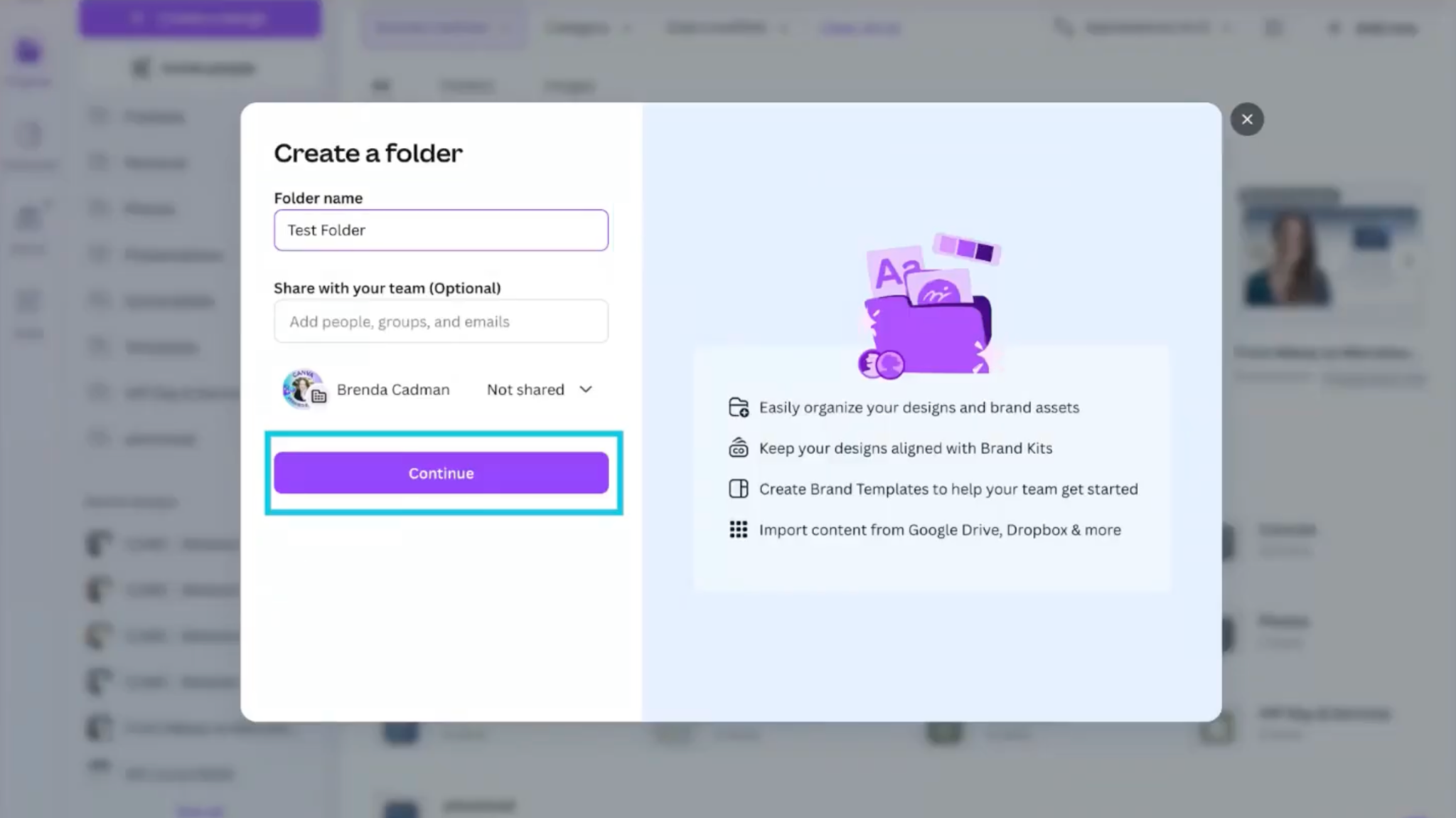
Creating one folder for every client sounds organized . . . until you have 75 folders to scroll through.
Instead, think about how your team naturally looks for content.
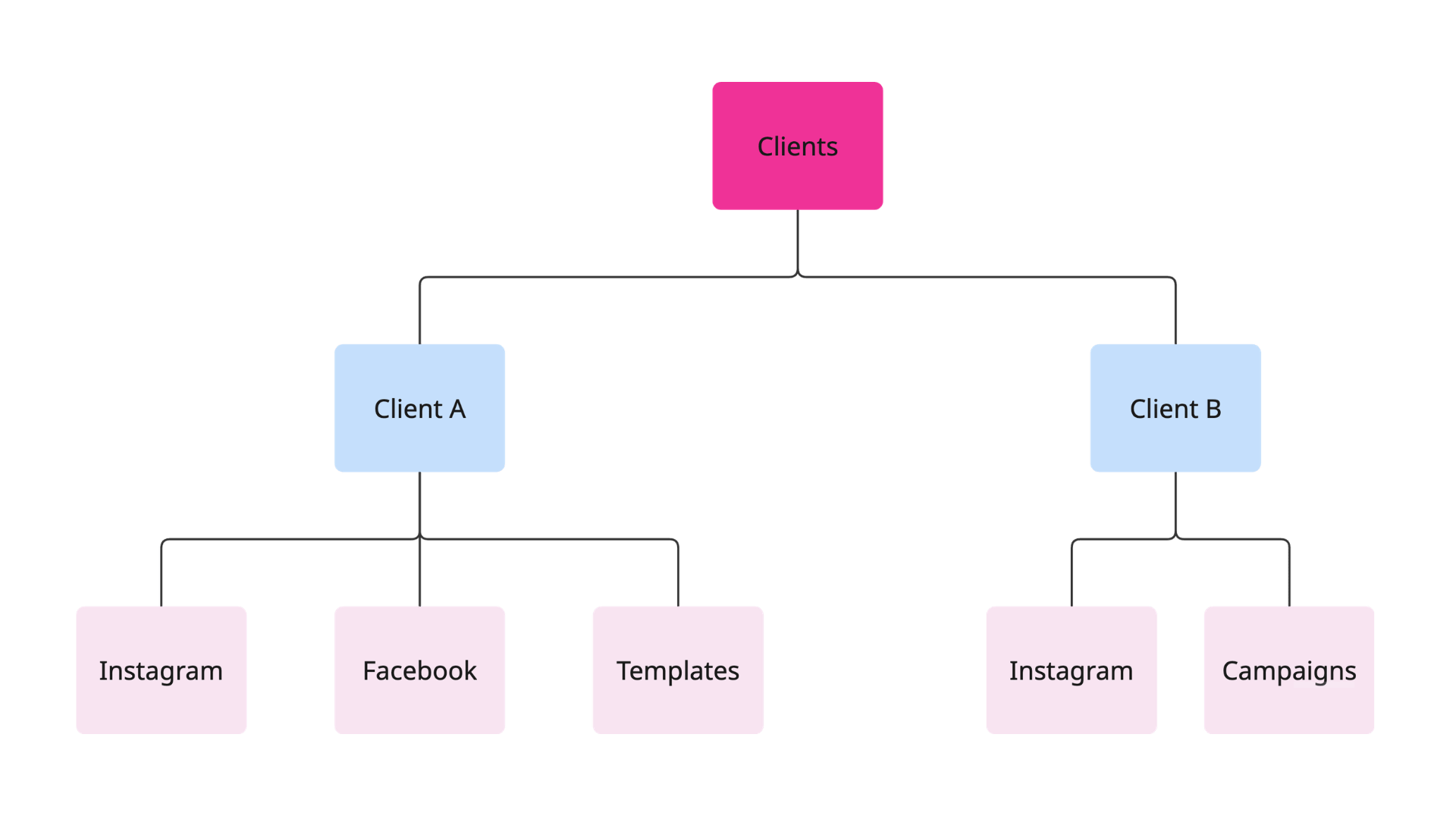
If you work at an agency, organizing by client first usually makes the most sense.
For example:
If you manage one brand, organizing by content type often works better:
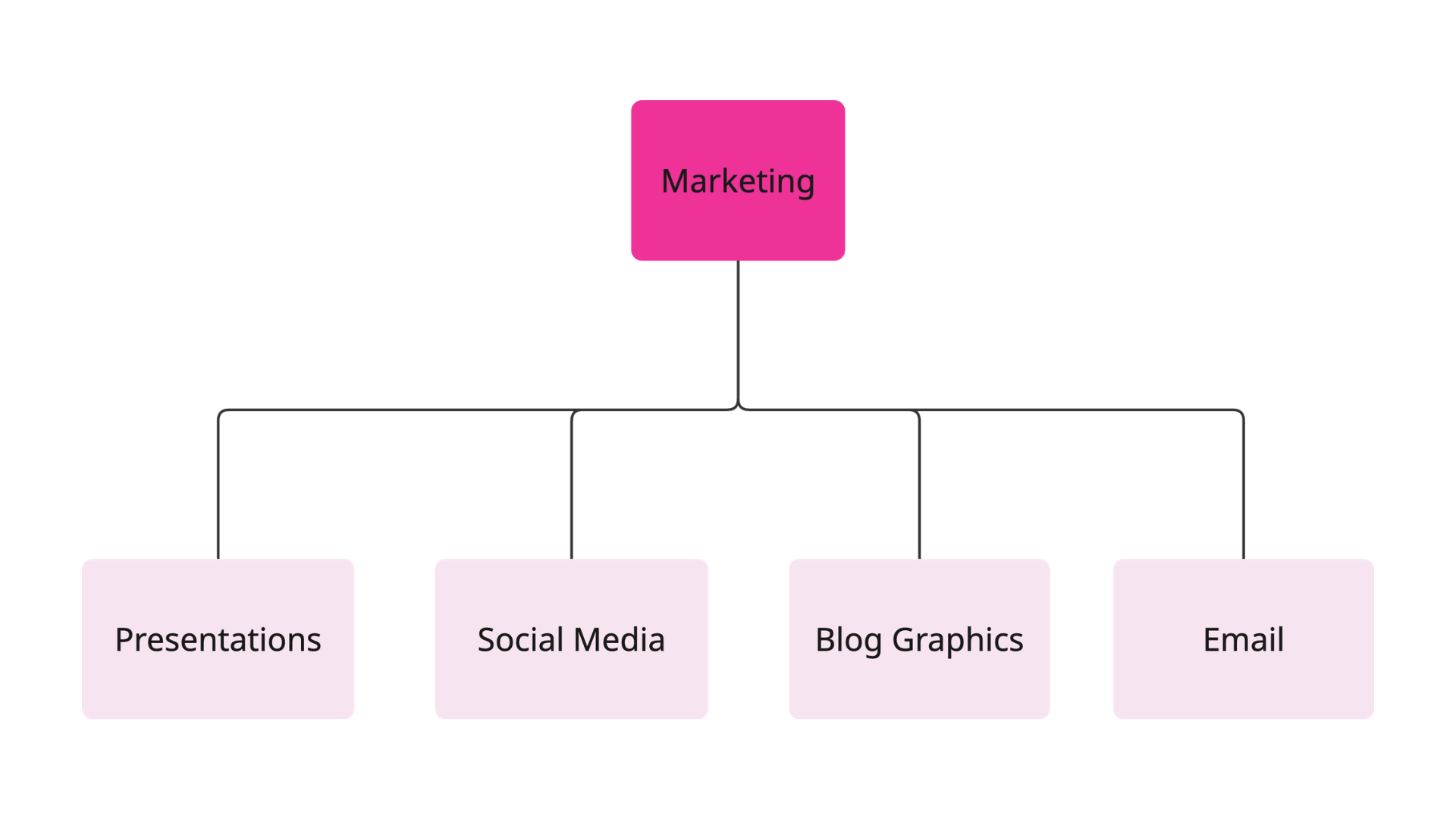
Using subfolders makes it much easier to find what you need without endless scrolling.
Orca tip: Canva lets you nest folders up to 10 levels deep, but you'll probably never need that many. Two or three levels is usually enough to keep things organized without making folders difficult to navigate.
3. Organize designs in bulk
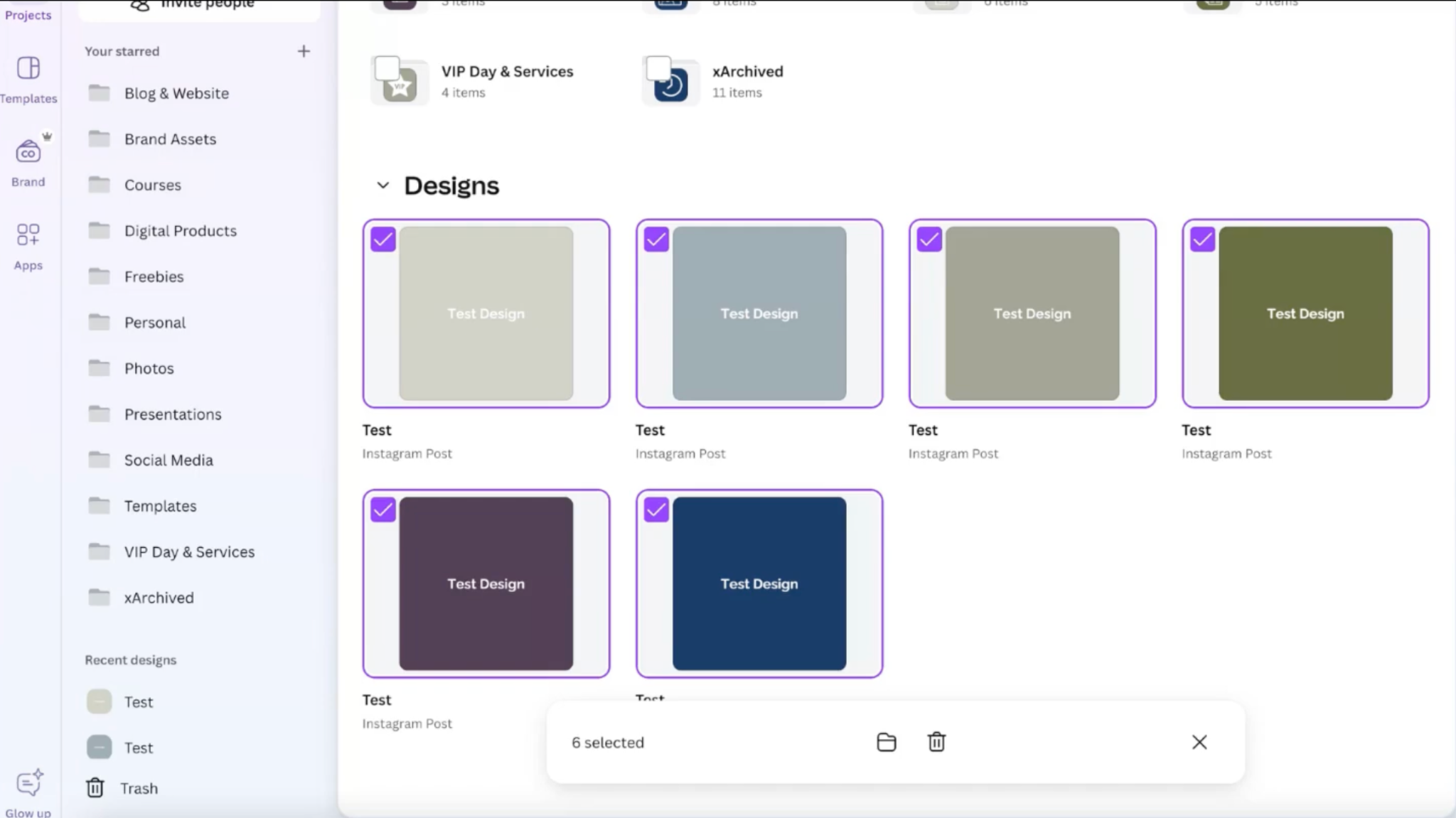
If your Canva account already feels overwhelming, don't make the mistake of cleaning it up one file at a time.
Inside Projects, Canva lets you select multiple designs so you can:
- Move files into folders
- Delete duplicate designs
- Archive outdated campaigns
- Organize large batches of content at once
This can save hours compared to sorting designs individually.
Orca tip: Schedule a 20–30 minute Canva cleanup at the end of each month. Move loose designs into folders, rename important assets, archive finished campaigns, and delete duplicates before they pile up.
4. Treat Uploads like your Downloads folder
It's easy to upload every logo, stock photo, campaign image, and screenshot you've ever used – but eventually your Uploads folder becomes one giant pile of files that's nearly impossible to search.
Instead:
- Store original assets in Google Drive, Dropbox, or another shared storage system.
- Upload files to Canva only when you need them.
- Delete old uploads once campaigns are finished.
Think of Uploads like your computer's Downloads folder. It's a workspace, not your long-term asset library.
5. Create a naming system everyone follows
Even the best folder structure falls apart if every design is called:
- Untitled Design
- Instagram Post
- Copy of Copy of Summer Graphic
Instead, agree on one naming convention for your entire team.
For example:
Client – Platform – Campaign – Date
Examples:
- HeyOrca – LinkedIn – Webinar Promo – July 2026
- Coffee Co. – Instagram – Summer Launch
- Client A – Facebook – Employee Spotlight
The exact format doesn't matter nearly as much as consistency.
When everyone names files the same way, searching becomes dramatically easier.
6. Save repeatable content as templates
If your team creates the same types of graphics every week, don't reinvent the wheel.
Turn recurring designs into templates.
This works especially well for:
- Blog promotions
- Webinar graphics
- Employee spotlights
- Weekly tips
- Testimonials
- Social media series
Instead of creating new files from scratch every time, duplicate an existing template and update the content.
You'll create content faster, maintain consistent branding, and avoid ending up with five slightly different versions of the same design.
Psst! Need some help customizing Canva templates? We have a step-by-step guide for you.
7. If your Canva account is already messy, don't panic
Opening Canva and seeing hundreds (or thousands) of unorganized designs can feel overwhelming.
The good news?
You don't have to organize everything today.
Start small.
- Build your folder structure.
- Organize every new design as you create it.
- Gradually move older projects into folders.
- Archive or delete assets you no longer need.
Progress beats perfection. Even spending 20 minutes a week organizing your Canva account will pay off over time
Bonus: Organize your Canva workflow outside of Canva
If your team is creating content in Canva, reviewing it over email, and publishing it somewhere else, things can still get messy.
Using a social media management tool like HeyOrca lets your team:
- Plan content in a shared calendar
- Collaborate on approvals
- Schedule posts across multiple platforms
- Keep everyone working from the same content plan
That means less time searching for assets – and fewer "Which version are we using?" moments.
Frequently asked questions
Should I organize Canva by client or by platform?
If you manage multiple brands, organizing by client first usually makes it easier to find everything related to one account.
If you only manage your own brand, organizing by content type or marketing channel often works better.
Can Canva folders have subfolders?
Yes. Canva allows folders within folders, making it easy to build a structure that scales as your content library grows.
Is Canva's homepage meant for organization?
Not really. Canva's homepage is designed to show recent activity, not to serve as a filing system. For long-term organization, it's better to work from the Projects section.
Does Canva have a social media scheduler?
Canva doesn’t have a full social media scheduler. However, Canva integrates with HeyOrca, so you can create your designs in Canva and add them directly to your HeyOrca content calendar without switching between tools.
A little organization goes a long way
Your Canva account doesn't need to be perfectly organized overnight.
Start with one or two changes. Build a folder structure that your team understands. Rename new designs as you create them. Set aside a few minutes each month to clean things up.
Before long, you'll spend less time searching for assets and more time creating content.
And that's time better spent.
Looking for free Canva social media templates? Here are 30+ free Canva templates to get started.
Still paying per seat for your social media tool? With HeyOrca, you get unlimited users – so your whole team (and clients!!) can collaborate without the extra cost. Plan, approve, and schedule your next post now.
Every member of your team deserves a seat at the table. That's why every HeyOrca plan comes with unlimited users. Choose the social media scheduler that helps you create, collaborate, and build community – without worrying about extra fees. Start your free trial.
Build stronger social media communities. HeyOrca brings your whole team together – with unlimited users!! – to plan, approve, and schedule content in one place. See it come together in minutes.
Looking for a social media tool built for teams and agencies? Plan, approve, and schedule your next post in minutes with HeyOrca – no credit card required.
.png)
Close all those tabs
Use HeyOrca to manage your social media content, approvals, and community in one place.
*no card required








%20(3).png)