The social media management tool built for agencies and loved by clients
Collaborate with your entire team, invite every client into the approval process, and scale your agency without paying for extra seats every time you hire.



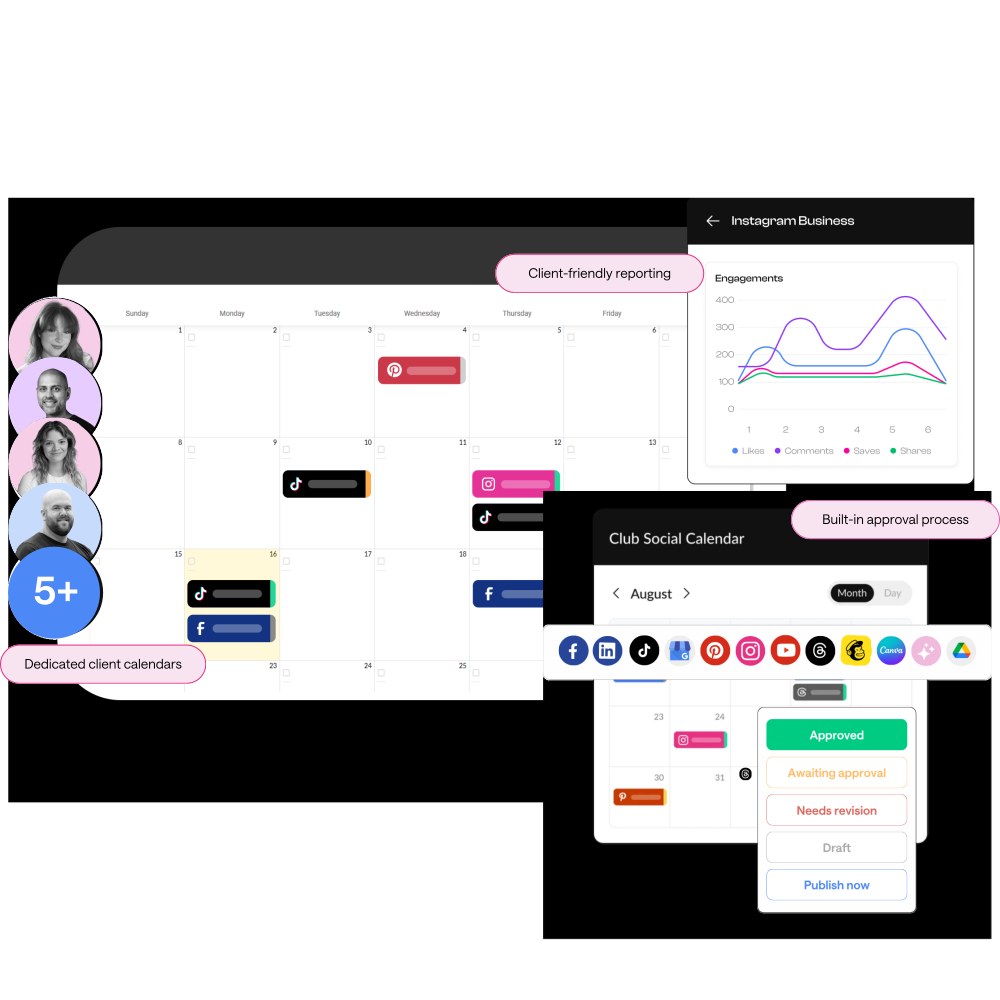
Have more than 5 clients?
Get a HeyOrca plan tailored to your needs. You’ll enjoy our top-rated tools (like unlimited users and built-in approvals) plus personalized onboarding, priority customer support, and more.
Manage all your clients with one social media tool
HeyOrca brings your calendars, approvals, publishing, and reporting together in one easy-to-use platform, so your team spends less time chasing updates and more time with your community.
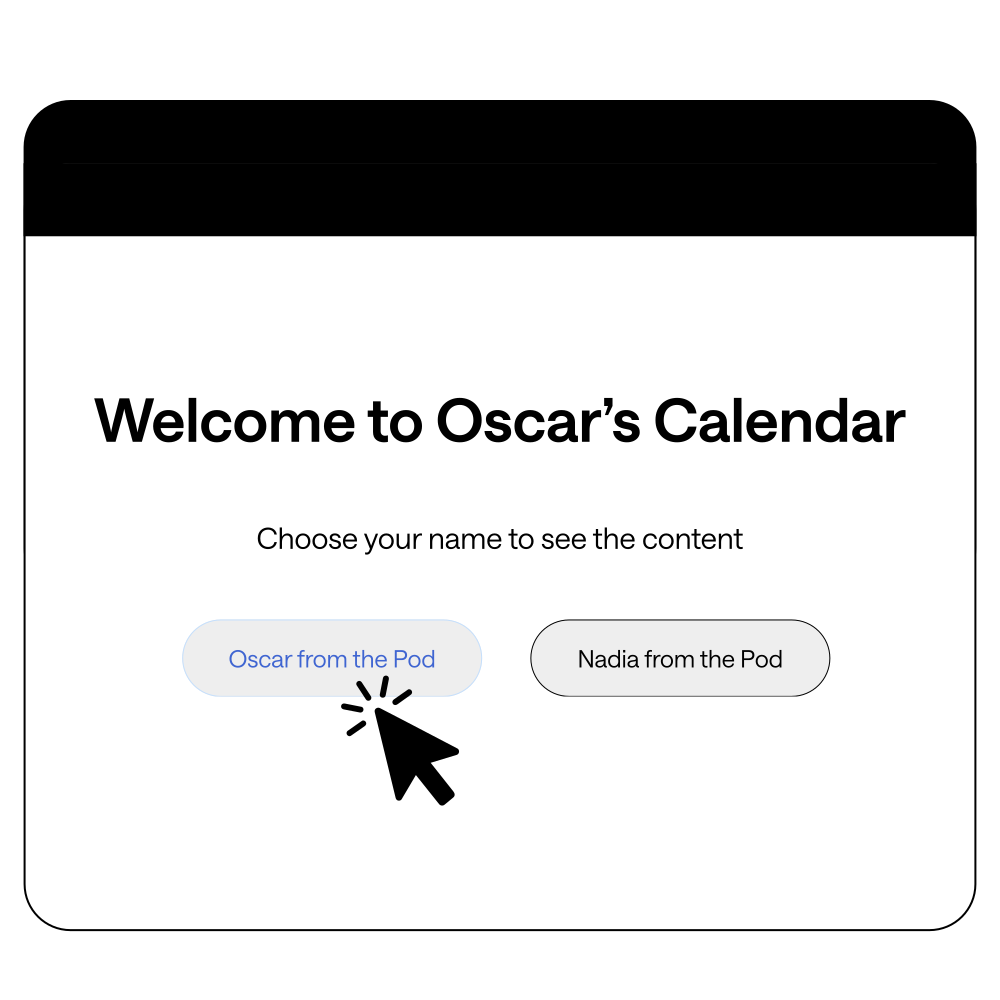
Simplify your client-approval process
No more spreadsheets or endless email threads.
Send each client a shareable link so they can easily approve posts and leave feedback (even if they’re not tech-savvy).
Automate your reporting process
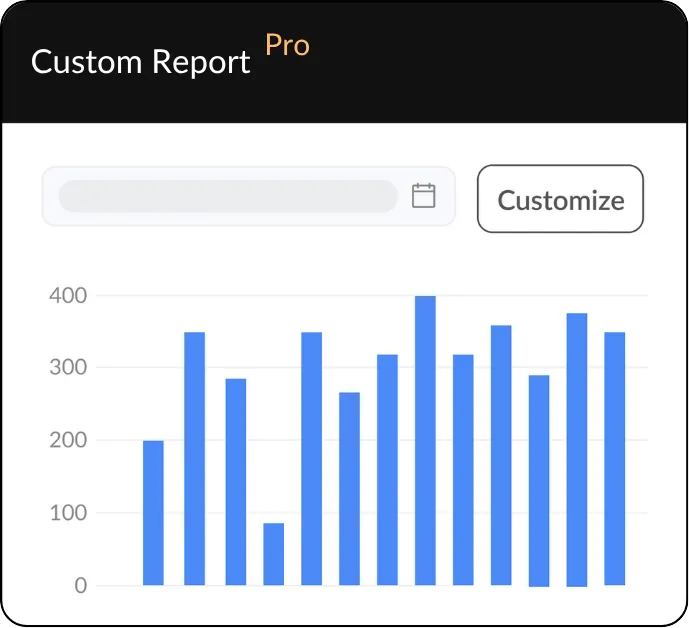
Create custom, shareable reports with your agency's branding.
Track post performance, compare cross-channel results, uncover competitor insights, and send clients a polished report with a simple shareable link.
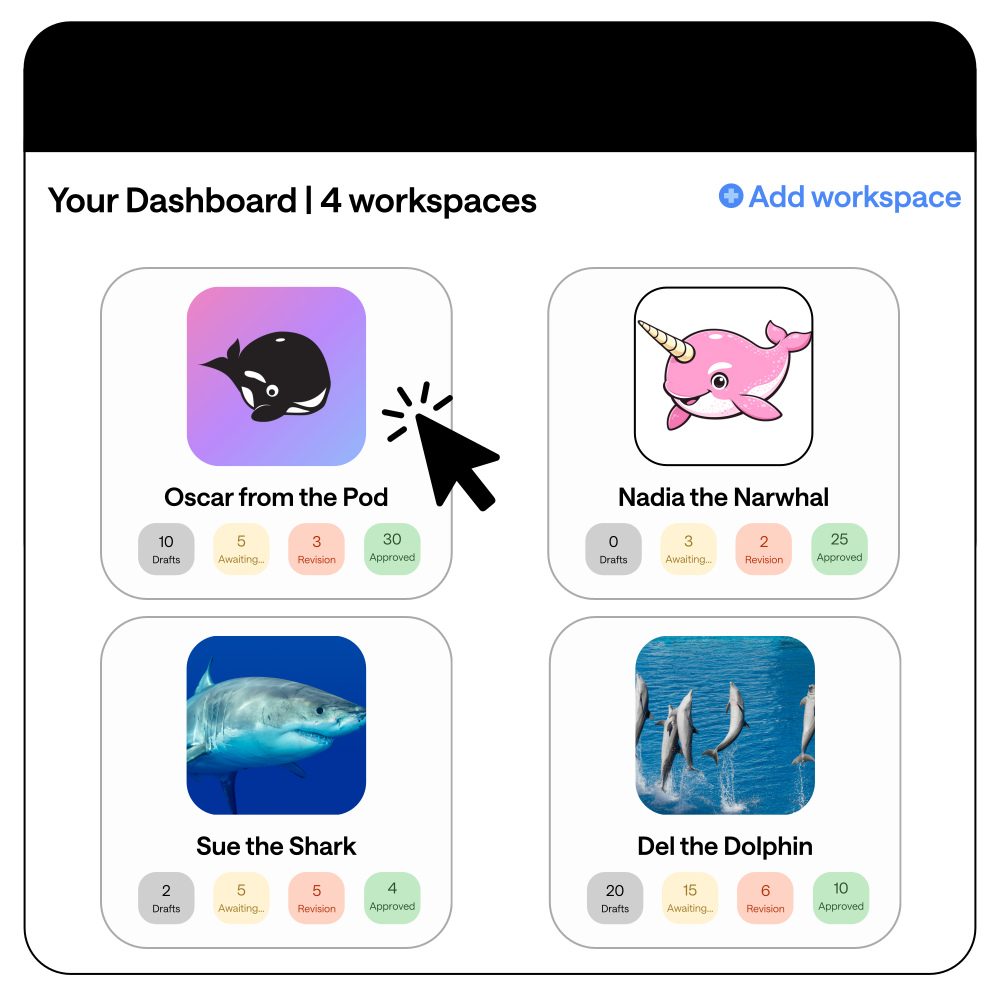
Dedicated client workspaces
For easier collaboration and happier clients.
Each client will have their own dedicated workspace, so you can keep your clients separate and give each brand the attention it deserves.
Build engaged communities
Respond to comments, DMs, and mentions right from HeyOrca.
Each client gets a separate community inbox, so you don’t have to worry about replying from the wrong account.

.png)
Wow clients with well-planned content
Grow multiple accounts without juggling multiple tabs. Bring your content strategies to life more efficiently by creating and scheduling posts all from one place.
Use AI for your workflows
Tap into the power of AI to speed up content creation (and beat writer's block).
HeyOrca will generate relevant suggestions for captions, replies, and accessible alt text.
.webp)
See why these marketing
agency leaders love HeyOrca

Client onboarding, approvals, and accountability became much easier with HeyOrca’s unlimited users.
Ready Bowda's
case study →

Planning, approvals, and publishing tasks that once took 5–10 minutes take about 30 seconds with HeyOrca's all-in-one platform.
Ready Jellybean's
case study →

A built-in approval system keeps Oyster Creative Co.’s social content moving smoothly between teams and clients.
Ready Oyster's
case study →
Switch from Hootsuite or Sprout Social to HeyOrca and get up to 6 month free*
No need to wait for your Sprout Social or Hootsuite contract to end. We'll cover up to 6 months of HeyOrca, so your team can get started right away.
Agency resources





.png)




Frequently asked questions
How do I upload and schedule a YouTube video in HeyOrca?
To upload and schedule a YouTube video in HeyOrca, first connect your YouTube channel to HeyOrca. To upload your own thumbnail, you will also need to verify your YouTube channel via a phone number. To start your post, drag and drop your video file into your HeyOrca calendar, or press the “Create post” button. Input your post details, including video description, video title, audience settings, optional first comment, and optional thumbnail. Schedule your post or mark it as “Awaiting approval” by adjusting the “Post stage.”
Can I draft, review, and approve YouTube videos before publishing?
Yes, you can draft, review, and approve YouTube videos in HeyOrca before they’re published. In HeyOrca, there are 5 stages you can use to manage a post’s publishing status: Draft, Awaiting Approval, Approve, Revise, and Publish Now.
Can I see YouTube content alongside other social channels in my calendar?
Absolutely! When you manage social media in HeyOrca, you can see your posts across all your channels – including YouTube, Instagram, Facebook, LinkedIn, X (Twitter), Pinterest, Threads, TikTok, and Google Business Profile – on your calendar.
How do I connect my YouTube channel (Google account) to HeyOrca?
To connect your YouTube channel to HeyOrca, first verify that you are logged into the correct YouTube account. You will need to be the owner of the YouTube account you’re looking to connect. Then head to HeyOrca, navigate to your Settings, and click on “Add Account.” Then select YouTube. Follow the on-screen prompts to give HeyOrca permission to manage the account.
Does the Brand Monitoring Report show sentiment over time?
Yes, you can view the sentiment of mentions and comments over time using HeyOrca's “Sentiment Over Time” graph.
How much historical data does HeyOrca’s Sentiment Analysis include?
New HeyOrca users can access sentiment analysis data from the date of sign-up. Existing HeyOrca users can access Sentiment Analysis data from November 9, 2025, onward.